Galaxy S8 UI for Samsung J5 2016: Download S8 dream UI for Galaxy J5 2016

Samsung Galaxy S8 UI has been ported to Galaxy J5. It is compatible with these models, J510MN, J510FN, J510GN, J510F, J510H, J510Y and J510FQ. For this, you will be installing custom ROM on your Samsung Galaxy J5 so you will need official J5 twrp custom recovery.

Download S8 dream UI for Galaxy J5

Here are the installation instructions:

1. Use J5 TWRP for this process.
2. Clear System, Dalvik Cache, Cache and DATA. In case you are not running stock ROM, it is suggested to clear everything.
3. Download the ROM, copy it to your phone’s storage and install ROM using twrp.
4. Install Cherry Kernel v1.1.3 and Reboot. This kernel is important to make Wi-Fi work.
5. First boot takes a lot of time, around 10-20 minutes so wait.
7. Install Update vX.X.zip and S8UX.zip and fix battery.zip

You can install plethora of S8 related mods. Make sure to install them after first boot.

Font Galaxy S8
EDGE Screen [People edge is not working right now]
Xposed
Samsung Apps Updated [Photo Editor, Video Editor and more]
Dolby Atmos
VIPER ARISE
AM3D Zirene Sound
TurboMOD – Turbo Colors Display MOD By HPM8294

Here are the features of it.

* A5 2017 UX & S8+ DREAM UX
* Multi Windows for all apps
* Always On display
* Camera v6
* Dual-SIM Support
* Quick Boot
* High volume calls
* Fast charge
* UHQ or Ultra High Quality Sound

Acer Chromebook Spin 11 Review: Chromebook Spin 11 with Wacom Pen at 399 dollars

This is the review of the Acer Chromebook Spin 11 which was launched back in January 2017. There are two colors available for it – white and black. The black one will be sold only to the students and teachers.

Acer-Chromebook-Spin-11_02

The white Acer Chromebook Spin 11 will be made available to general public and sold in departmental and electronic stores as well. There is another difference between the two – the white one has support for Wacom EMR stylus which allows them to take notes and do freehand drawings. You can also use any of the top iPad stylus with it. The black one, that is the commercial edition lack this very feature.

Acer Chromebook Spin 11 is manufactured using reinforced chassis that is certified to MIL-STD standards so it can withstand pressure, shocks and water resistant to. The hinge is 360 degree so you can use it in tablet mode. It is also possible to use it in presentation and tent mode. It weighs 1.4 kilogram and measures 296 x 206 x 20.5mm, making it a very compact laptop to carry around.

https://www.youtube.com/watch?v=c3tcfxx1zR8

Acer Chromebook Spin 11 specifications include dual-core Intel Celeron N3350 or quad-core Intel Celeron N3450 processor, 4-8GB of RAM LPDDR4 and 32-64GB of eMMC internal memory, 11.6-inch HD display (1366 x 768 pixels) and Corning Gorilla Glass, two USB ports 3.1 Type-C , two USB 3.0 ports Type-A, 802.11ac 2×2 MIMO WiFi, Bluetooth 4.2 and a microSD card slot to expand storage. On board, there are also has two HD webcams, out of which, one is 1MP and another is 5MP that is located on back. It will have battery life of 10 hours.

Acer-Chromebook-Spin-11_03

Acer Chromebook 11 Spin (R751T) will hit the market in June at the price of $ 399 but we have no word of its pricing for the EU market. It will be revealed later this month at the upcoming Computex 2017 show.

Samsung Note 7 ROM for J5 2016 | Download Galaxy J5 Note 7 firmware

Here is a feature rich ROM for the Samsung Galaxy J5 that brings entire Note 7 user interface and features to the J5 2016 model. Compatible variants include J510FN and J510MN while the J510GN and J510F are not confirmed.

Samsung Note 7 ROM for J5 2016

Here are the features of this ROM:

* Android 6.0.1 Marshmallow
* Based on Note7 N930FXXU2BPJ8 firmware
* November security patch (01.11.16)
* Note7 frameworks & apps
* Recents Panel with Ram bar
* Fast & Stable
* Root and Busybox installable
* Init.d support
* Heavy Debloated
* Deknoxed
* Zipaligned in boot
* Tweaked for best performance

Installation is easy and quick. The only thing you will need is J5 2016 TWRP with Aroma support. Once you have it, download the ROM onto your phone. Clear System, Dalvik Cache, Cache and data. Then in Aroma installer, select safe format, then, choose your rooting method and features. The first boot will take around 10 minuets to boot so do not panic.

The ROM is accompanied by a kernel that brings several battery saving and performance features.

* Build with LinaroMod* 6.1.1 Hyper toolchain
* Permissive Selinux
* Linux version: 3.10.89
* Oc: Cpu(1.5ghz), Gpu(720mhz)
* Mild undervolt
* Neon
* Tune* up for Cortex A53 / ARMv8 architecture
* O3 and A53 optimization flags
* MSM Hotplug
* Alucard Hotplug
* Bricked Hotplug
* Intelli Thermal / Plug
* Asynchronous Fsync
* Powersuspend
* Quickwakeup
* Kcal Display Color Control
* Various io schedulers
* Frandom driver
* KSM(Kernel same page merging)
* Cpu Governors: Alucard, Intelliactive, Barry Allen, interactive, ondemand, conservative, userspace, powersave, performance
* Default TCP Congestion algorithm:Westwood
* Removed CPU_LIMIT
* CPU / GPU enhancements for greatly improved performance / power consumption.

Samsung Galaxy J5 2016 TWRP: Download J510H J510F J510FN J510GN J510MN TWRP Custom Recovery

TWRP 3.1.0 for the Samsung Galaxy J5 2016 TWRP is available for download. It works for all variants of the J5 2016 android phone including J510H, J510F, J510FN, J510GN and J510MN. This version supports Aroma installer and ADB Backup. You can also Wipe Persist, Wipe Preload, Mount Efs / Preload / Firmware-modem / firmware / Persist and more features.

Download Galaxy J5 2016 TWRP

How to install .tar Samsung Galaxy J5 2016 TWRP Custom Recovery

1. Install device usb drivers and Odin
In Phone Developer options – On OEM unlock
2. Power off the device.
3. Boot to download mode (VOLUME DOWN/HOME/POWER).
4. Volume UP once.
5. Open Odin  as an administrator, connect the device to a usb port,
and make sure a blue button appears and says “Added” in description on the left.
6. Select AP or PDA for older Odin and search for the downloaded tar file.
7. Uncheck auto reboot from the second tab.
8. Start flash and you should see the succeeded command.
9. Unplug the device and remove the battery.
10. Reboot to TWRP and enjoy! (VOLUME UP/HOME/POWER).

How to install .img Samsung Galaxy J5 2016 TWRP Custom Recovery

1.Download the latest TWRP image file (.img)
2.Boot into the TWRP recovery.(VOLUME UP/HOME/POWER)
3.Go to install and find and select the Images button.(At right-bottom)
4.Browse to the image that you downloaded and select it.
5.Choose recovery and swipe to flash. You are done

Galaxy Note 1 N7000 gets Android 7 Nougat: Download Android 7 for Galaxy Note 1

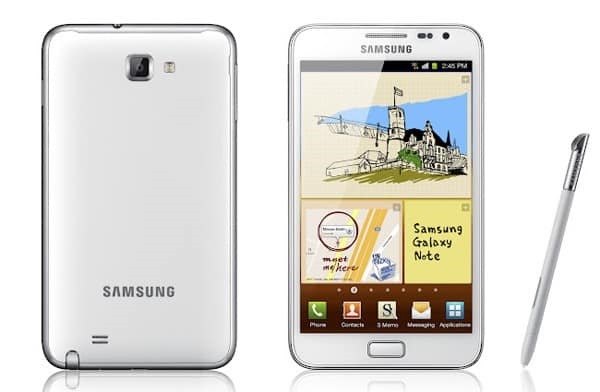
Samsung released the Galaxy note 1 back in 2011 and it is interesting to note that there is still a plenty of development going for it. Infact, you can download the latest android 7 nougat for it thanks to folks behind Lineage OS that was launched a firmware for it. If you running stock Samsung ROM, follow these steps.

Download Android 7 for Galaxy Note 1

1.flash N7000ZSLR1_N7000OZSLR1_BRI (or any other other 4.1.2) stock rom using odin
2.Copy Rom + Google Apps to your sdcard.
3.flash PhilZ-cwm6-XXLT6-XSA-5.06.1.tar.md5 to get cwm recovery by using odin or mobile odin
4. boot into recovery
5. flash this kernel to get an updated recovery
(this step will make your old rom unbootable stuck in the n7000 screen but you can boot into recovery with press and hold "home" and "volume+" buttons and power on your phone)
6. you need to reboot! your device now to recovery
7. you are now in the updated recovery and you need to do a factory reset + format the /system partition
8. you can now install the rom and gapps and reboot your device.

If you are having problem installing application, we suggest doing a repartition your phone and make more space. Just replace the files used in step 16 with the one we used for cm14/android7.

To enable root on N7000 in this ROM, follow these steps.

1. Go to Settings-About phone and tip 7 times on Build number to enable the Developer options
2. Go to Settings-Developer options-Root access and set it to Apps and ADB

LG V10 Rooted Stock ROM: LG H901 V10 Busybox rooted firmware

If you do not like messing with system and want root access, check out this LG V10 firmware that is stock, rooted and has busybox installed. The only requirement is you need to have LG V10 TWRP pre-installed. This ROM is only for the H901 variant.

LG V10 Rooted Stock ROM

It is completely stock, so even the junkware is there but since you have root, you will be able to uninstall it using any root tool. You can download the ROM from here.

Use the TWRP to flash it. Wipe is not needed but we advise to do it to avoid dealing with unexpected bugs later. It is understood and obvious that after installing this pre rooted ROM, you will not receive any OTA update but you can simply flash stock ROM again to get to that. For the geeks, this ROM only reflash the system and boot partitions. It does not overwrites recovery.

Download LG V10 TWRP 3.0 Custom Recovery: LG-H960A V10 custom recovery

LG V10 H960A TWRP 3.0 Custom Recovery

TWRP custom recovery for LG-H960A, more popularly known as LG V10 is now available for download. With LG V10 TWRP 3.0 custom recovery, you will be able to install custom ROMs and all sorts of LG V10 related hacks. To install it, you must have Android Marshmallow onboard. If you do not have it or still have not received it, you can use LG Bridge to fetch it. Also, bootloader needs to be unlocked.

LG V10 H960A TWRP 3.0 Custom Recovery

Another things to keep in before flashing LG V10 TWRP 3.0 custom recovery is that you will loose all the data. So make sure you have all the important stuff backed up.

Now is time to flash TWRP (twrp-3.0.2.0-0-h960a.img.zip (unpack .zip to get flashable .img)). I am assuming you have ADB and flashboot drivers installed on your computer. Connect your LG V10 to computer, fire up ADB and type in these commands.

adb reboot bootloader
fastboot flash recovery recovery.img

After typing in first command, your phone will reboot to fastboot screen. Second command flashes TWRP on it. Now, turn off your phone completely. For that, hold power button or take battery out. Do not reboot it. Now, put battery in and press power and volume down button. You will see the nice LG logo and that very moment, release power button while keeping the volume button down and then, press power button again.

You will get option to do factory reset and if you have done everything correctly. Make use of volume and power button and choose yes – twise. You will now be greeted with TWRP. Now, it is SuperSU to get root. Go into TWRP and type in this to root it.

adb push BETA-SuperSU-v2.74-2-20160519174328.zip /sdcard/supersu.zip

LG G2 Android 7 Nougat ROM for d80x, ls980, vs980

Download LG G2 Android 7 Nougat ROM for d80x, ls980, vs980

Folks handling android ice cold project have churned out android 7 nougat ROM for the LG G2 for all of its variants including d80x, ls980 and vs980. This is based on AOKP so you get stock android which means no bloatware. To flash this LG G2 Android 7 Nougat ROM, you will need the following.

* Custom recovery (TWRP)
* For the best experience upgrade to stock lollipop, Then root, then install TWRP
* Do not ever install any Bootstack
* Clean flash if coming from another ROM or CM 14.x (no dirty flash)
* Don’t do it if you don’t know it
* ROM has gapps persistance in between dirty flashes

We urge you to do a full wipe before installing the ROM. The developer of this ROM has not specified any bugs so we are expecting it to run smooth on your LG G2 phone.

Galaxy Mega Android 7 Nougat ROM: Download Android 7 for i9152, i9150 for Samsung Galaxy Mega–LineageOS Android 7 firmware for Galaxy Mega

Galaxy Mega Android 7 Nougat ROM

LineageOS is available for the Samsung Galaxy Mega 6.3 and 5.8 and this gives you latest Android 7 Nougat for the three old phone. LineageOS is based on AOSP project. Everything is working except for the second SIM card slot. Also, screenshot feature is not working and recent app thumbnails are coming out to be blank.

Everything is working including Wi-Fi, Bluetooth, RIL (Calls, SMS, Mobile Data), Sensors (Accelerometer, Compass, Light, Proximity, etc.), Camera, Video (playback & recording), Audio (playback & recording) and GPS.

Installation instructions:

* Install a custom recovery with SELinux support or latest CWM Galaxy Mega recovery.
* Download the latest build.
* Wipe data/factory reset if coming from stock or another ROM (You may get a “staus 7” error if you fail to wipe.)
* Flash the ROM and then GApps and reboot your phone

It is an amazing firmware for those who are looking for bloatware free experince on their android phone. It also has support for f2fs and to enable that, you just have to download the modified TWRP recovery from here and flash it. Make sure not to flash a kernel that does not support F2FS. In case, you want to go back to ext4 format, you will have to format the data and cache with Galaxy Mega’s TWRP recovery to ext4 format.

Galaxy Note 3 Neo AOSP ROM brings stock android

Cosmic OS for the Samsung Galaxy Note 3 Neo has been released. This custom ROM is made on android open source project whose short form is AOSP. Its developer claims that he has further tweaked it for best performance battery life enhancements.

Galaxy Note 3 Neo AOSP ROM

Keep in mind that the first boot will take some time and it is completely normal for your device to loop a few times. Developer does mention that there is no guarantee that it will work normally if you use a custom kernel.

Here are the list of features added:

Statusbar customizations
Brightness Slider
Enable/Disable Show Notification Count
SuperUser Indicator Switch
Double Tap To sleep Statusbar
Carrier Label
Carrier Label Switch
Clock Customizations
Time & date
Day & date Toogle
Center/Right/Left Clock Choice
Date Format
Battery % Text
Network Traffic Indicator
Network Traffic Arrows Switch
Incoming/OutGoing Traffic
Statusbar Cosmic Logo
Cosmic logo Color
Cosmic logo Position
StatusBar Ticker
Ticker Text color
Ticker Icon Color
Animations
Gestures
Recents Panel
Full Screen Recents
Recents Styles
Clock Widget
CLock And Alarm Customizations
Weather Panel Customizations
Calender Events
Navbar Tuner
LockScreen Customizations
Lockscreen Bottom Shortcuts
Lockscreen General Shorcuts
100+ Icons for Shortcuts
Lockscreen Media Art/Enable Disable
Quick PIN/Pattern Unlock
LockScreen Wallpaper
Lockscreen Weather Widget
Lockscreen Icons Color
Quick Settings Draggable Tiles
Customizable Tiles
Dyanamic Tiles Adjustment
Number of columns/rows
Notification Drawer
LongPress Toogles to Enter Settings
Disable Immersive Mode Messages
Force Expand Notification
Quick PullDown
Smart Pulldown
Buttons Customisations
Advanced Reboot Menu
Power Menu Customizations
Power Off
Reboot(Recovery, Bootloader, Soft Reboot)
ScreenShot
Power Menu End Calls Switch
Restart SystemUI
Airplane Mode
ScreenRecord
On the Go Mode
Sound Panel
Long Press Actions
Double Tap Actions
Menu Button(For devices with HW keys Only)
Volume Buttons
Wake Up Device
Playback Control
Ringtone Volume Control
Swap Buttons on Landscape mode
Volume Key Answer
Miscellaneous
Clock Shortcut
Camera Shutter Sound Enable/Disable
SystemUI Tuner Icon Settings
Enabled By default
Removed Demo mode and Tweaked SystemUI Tuner
StatusBar Icons Custmizations
Quick Settings Customizations
Other Features
Perfomance Profiles
LCD Density
Expanded Desktop Mode
Heads Up Switch and customizations
Configurable 0,90,180,270 Degree Rotation
Lock Screen Autorotate Switch
Battery Light Customizations
Notification Light Customizations
Font Size
Performance Tweaks (Kernel Aduitor Inbuilt)
SuperSU Inbuilt
Pixel Launcher
Blur Personalisation
Snap Camera
Working screen-off Gestures
Substratum
Overall Smoothness Improvements

Flashing instructions:

* Download ROM and GApps http://opengapps.org/
* Copy ROM and GApps to internal storage.
* Wipe /data, /system and /cache.
* Flash ROM and GApps.