Download HTC One M7 Sense 7 ROM

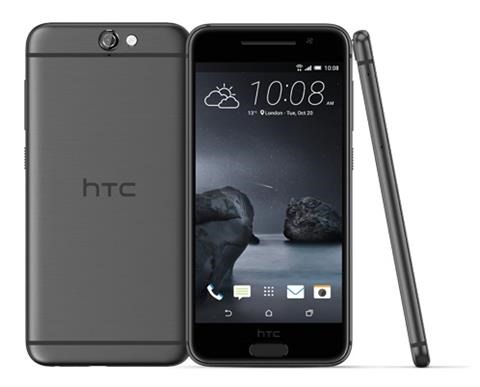
HTC One M7 Sense 7 ROM is now available for download and it brings a slew of new features and surprises for the old smartphone users.

Download HTC One M7 Sense 7 ROM

Requirements for flashing this HTC One M7 Sense 7 ROM:

* Unlocked Phone from HTCDEV or S-OFF
* Custom Recovery like CWM or TWRP for HTC M7

Here is its feature list:

latest HTC One M7 WWE Base 6.09.401.11
more languages enabled (FULL WWE)
root, busybox and init.d support
persistent ADB enabled
ramdisk improvements
battery life, performance and memory improvements
sysro / sysrw binaries
openvpn / sqlite support
disabled logging & removed bloatware
stripped debugging info for improved performance
optimized with latest sdk for improved performance
trimmed partitions for improved performance
zipaligned apps for improved performance
flar2’s Write Protection MOD to allow S-ON users fully writeable /system partition
advanced power menu
disabled Persistent Navigation Bar (m8 has it since it has no softbuttons)
5×6 Grid size option in Sense App Drawer
Sense Launcher Menu Support
Extended Native EQS (15 tiles) props @Jonny for inital Sense 5 mod
Ability to map LongPress Home SoftButton for MENU in Settings – Display
Smoothest ROM
Best Battery Management
Fast fixes / updates
InsertCoin Kontrol
InsertCoin Market
InsertCoin Themes
InsertCoin Zip Flasher
InsertCoin Market Web – The first and only one web interface for custom Hub/Market
InsertCoin Battery icon packs
InsertCoin Launcher icon pack support
InsertCoin PerApp Color
InsertCoin Extreme Powersaving app remap
InsertCoin Lockscreen action remap
InsertCoin OTA Updates

AROMA Options:
optional show LTE icon instead of 4G
optional Disable Persistent NFC Icon
optional Lower Proximity Sensor Sensibility
optional Louder Speaker Mod
optional Stock Boot Animation
optional Exchange Email Hack (disable EAS Pin Requirement)
optional Disable HTC Color Enhancement
optional Show LTE instead of 4G
optional Disable Fast Dormancy

Bluboo Maya vs Ulefone U007 specs comparison:two android phones below 300

There is a promotion going on at the TomTop and these two android phones Bluboo Maya and Ulefone U007 are being sold at heavy discounts.

Bluboo Maya vs Ulefone U007 specs

Ulefone U007 specs include 5 inch display with a resolution of 1280 by 720 pixels, a quad-core MediaTek MT6580 1.3 GHz, 1 GB memory RAM and 8 GB internal storage expandable with a microSD card. We get an 8 megapixel main camera with interpolation tech that saves files as 13MP pictures. Same goes for the front 2MP camera that can capture 5MP photos. Also Ulefone U007 comes with dual-SIM support, 3G connectivity and a 2200 mAh battery.

Bluboo Maya vs Ulefone U007

Bluboo Maya specs are slightly better packing 5.5 inch display with HD resolution, the same quad-core MediaTek MT6580 processor clocked at a frequency of 1.3 GHz, 2 GB RAM, internal memory of 16 GB and micro SD card supporting 32GB flash storage which is again expandable via microSD card slot. You also get a Sony 13 megapixel main camera , an 8 megapixel camera sefie, and v2.0 microUSB port for charging the battery of 3000 mAh. IT comes with Bluetooth 4.0, dual-SIM support and a 3.5 mm audio jack.

Galaxy Note 5 UHQ Camera Mod Download

You can take super high UHQ photos on your Samsung Galaxy Note 5 by downloading and installing this UHQ camera mod. To install this you will need to root your Galaxy note 5 which is easy. Here are the features of this Samsung Galaxy Note 5 UHQ mod.

Download Galaxy Note 5 UHQ Camera Mod

* All 96 percent Jpeg Quality and 75 percent Bitmap compress changed to 100 percent
* 4K Time limit is removed.
* 4K Bitrates 48mbits to 85mbits (hardware limit is 65-70 Not verified)
* FHD30 17mbits to 61mbits (Not verified)
* FHD60 28mbits to 120mbits It’s Need very fast micro SD (Not verified)
* All 10-13 mbits bitrates up to 25mbits (Not verified)
* Dual SD-HD-FHD Time limit 61 Min (Not verified)

Installation instructions:

* Backup and delete and copy the modified apk to the system/priv-app/SamsungCamera4.apk , set permission rw-r-r 0644
* Backup and delete and copy the modified media_profile.xml to the system/etc/media_profile.xml , set permission rw-r-r 0644 not required for now.
* Delete camera app data-cache from applications
* Wipe cache from recovery if it does not work wipe cache-dalvik

Galaxy Note 4 CM13 download: CyanogenMod 13.0 for Samsung Note 4

CM13 aka CyanogenMod 13.0 for Samsung Galaxy Note 4 has been released. Right now, only N910C and N910CQ are supported. Also keep in mind that this will make your device out of warranty and increase KNOX counter as well. But if you are out of warranty and feel free to proceed.

download CyanogenMod 13.0 for Samsung Note 4

1) Make sure you have TWRP 3.0.2.0 on note 4. Download ROM as well from here.
2) open Recovery Mode on device. ( Home + volume Up + Power)
3) Do a full wipe. (Data + System + Cache + Dalvik Cache)
4) Select "cm_treltexx-ota-765ef3442c.zip” file when start a setup.
5) When it finish process,  you reboot your device.
6) process completed.

While this CM13 release is deemed as stable, we still suggest sticking to stock if you are looking for more stable experience. CM13 brings android 6 marshmallow to the Note 4 and there is nothing better than CyanogenMod 13.0 to enjoy android 6.0 on note 4.

Download Xpose for Grand Prime: Xposed Framework for Samsung Galaxy Grand Prime running stock lollipop

It is now possible to install Xposed framework on Samsung Galaxy Grand Prime. The requirements include rooted Grand Prime, stock lollipop ROM and some time. You can use this on both deodexed and odexed Grand Prime ROMs.

Download Xpose for Grand Prime

Installation instructions:

* Download XposedInstaller_3.0_alpha4
* Install it. It will not work yet but don’t fret.
* Download xposed-v85.0-samsung-5.0.x-By-dkcldark.
* Place it on the sd card.
* Reboot in TWRP. If you are not comfortable with TWRP, you can use ODIN on your desktop to flash it as well.
* Find the zip file nd flash it.
* Wait for the installation.
* Reboot

That is it. You now have xposed framework on your android phone.

Root Samsung Galaxy Grand Max easily and safely: Rooting Samsung Max using Kingroot method

Samsung Galaxy Grand Max can now be rooted using kingroot method. This method was tested on our Grand Max and we can say it is totally safe and secure way. No data is lost during this rooting process.

Root Samsung Galaxy Grand Max

1) On your Samsung Galaxy Grand Max Open Settings > Security > Device Administration > Unknown Source (tick to enable it).
2) Download and install KingRoot APK on your Android Device.
3) Once Installation is completed, you will be able to see the following icon in the Launcher Menu:
4) Tap on the KingRoot Icon to Open it. Once KingRoot Application is launched you will be able to see the following screen:
5) Now, Tap on the Start Root Button to begin the root process.
6) Now, KingRoot will start the rooting process.
7) Within a minute or two you will be able to see the Big Green Tick, which signifies that your device is rooted successfully.
8) Restart your Device manually.
9) Now, as your Samsung Galaxy Grand Max is Rooted Successfully you might want to verify that your device is rooted or not. For that, Download and install Root Checker Application from the Play Store and verify the root status manually.

Another way if above method does not work:

Download and install Terminal emulator app from  here.
Download kingroot zip file
Send the extracted folder “mrw” to the internal storage of your device and make sure that this folder contains 4 files
Open Terminal emulator and type : su
Allow root permission
Type : sh/sdcard/mrw/root.sh
then just let this happen it ll auto update everything

Download Teclast X98 Plus Windows 10 Image

Did you mess up the installation and now looking to download Teclast X98 Plus windows 10 image on it? We have got hold of its official Teclast X98 Plus Windows 10 image as well which you can download from mega.

Download Teclast X98 Plus Windows 10 Image (2)

Installation instructions:

* connect the USB key and keyboard to the tablet
turn tablet on. Hit F7 on keyboard and select your USB flash drive.
* the installer will start and you will get blue screen error which is normal
* wait the tablet to reboot and hit F7 again and select your USB key
* Now the installer will install both windows 10 and android.

The Teclast X98 Plus Windows 10 image is official and it has not been messed or changed in any manner. It comes directly from Teclast and a visitor of our site has simply mirrored it on to mega’s website.

Download Teclast X98 Plus Windows 10 Image (1)

Formats supported:
Picture format: BMP,GIF,JPEG,PNG
Music format: AAC,MP3,WMA
Video format: 3GP,AVI,MP4
MS Office format: Excel,PPT,Word
E-book format: PDF,TXT

Quick specs:
Battery Capacity(mAh): 3.8V/8000mAh
Battery / Run Time (up to): 8 hours video playing time
AC adapter: 100-240V 5V 2A
Back camera: 2.0MP
Front camera: 2.0MP
TF card slot: Yes
Micro USB Slot: Yes
Micro HDMI: Yes
RAM: 4GB
ROM: 64GB
3.5mm Headphone Jack: Yes
OS: Android 5.1,Windows 10
CPU Brand: Intel
CPU: Cherry Trail Z8300
GPU: Intel HD Graphic(Gen8)
Core: 1.44GHz,Quad Core

Download Android 5.1.1 ROM for Galaxy Grand Prime: Download Grand Prime Lollipop pac-man ROM

Samsung may have abandoned android development for the Samsung Galaxy Grand Prime but folks at xda have been supporting this entry level android phone quite nicely. One of the developers recently released a Pac-Man ROM that brings android 5.1.1 to the Grand Prime.

Download Android 5.1.1 grand prime lollipop

* Download the ROM and GApps
* Reboot to recovery
* Wipe data/factory reset
* Flash the ROM and then GApps
* Reboot your phone

Installation instructions:
* Reboot to recovery
* Flash the ROM
* Wipe both dalvik cache and cache
* Reboot your phone

It is obvious but flashing this will void your warranty but since Galaxy Grand Prime is already a pretty old, there is nothing to worry about.