Galaxy S Tab Pro with Windows 10 price: on sale in Europe

Samsung Galaxy S Tab Pro with Windows 10 is on sale in Europe and it packs some great specs. This include the dual core Intel Core M3 6y30 processor that runs at 900MHz which can run at 2.2 GHz under heavy load. The processor is accompanied by Intel HD graphics 515 integrated chip that runs between 300-850MHz. It will go on sale for about 999 euros.

Galaxy S TabPro with Windows 10 price

Other Samsung Galaxy S Tab Pro specs include 128GB SSD, 4GB of RAM and windows 10 home operating system. There are three variants of it: wi-fi only version at 999 euros, windows 10 pro version at 1099 euros and LTE windows 10 pro variant at 1199 euros. Intel Core M3 6y30 benchmark can be seen here.

While you can purchase the entry level Surface Pro 4 at this price, you must keep in mind that Surface Pro does not come with type keyboard cover and you must shell out more money to get it.

MSI Gaming Pro B150M gaming motherboard launched

MSI has announced a new member to its family of motherboards Gaming , in this case with micro ATX format . This is the new MSI Gaming Pro B150M a board based on the Intel B150 chipset supports all the latest processors Intel Core sixth generation with LGA1151 socket. MSI Gaming Pro B150M review.

MSI Gaming Pro B150M review

Lately almost all hardware manufacturers (and not only plates) are tending to the small form factor, because they are teams with low consumption, low noise and take up little space and yet are able to deliver a great performance. For this reason it is common to see manufacturers like MSI launch new models of motherboards in small format (in this case medium) specifically designed for Gaming.

Among the features that make this new MSI board games designed specifically to meet the DDR4 Boost technology, which provides maximum performance and stability while providing great compatibility with almost any market DDR4 memory. It also has Audio Boost technologies and LAN Gaming already know too well with this manufacturer, plus of course the audio circuit isolated from other components.

B150M MSI Gaming Pro also stands out for its aesthetics. With the usual black finish and red colors of MSI, plate stands out for its integrated red that will stand inside the equipment side window systems with LED lighting. In addition, the RJ-45 connector for LAN LED lighting has to have it in sight when we go to the back of the box.

MSI has announced the upcoming launch of this new motherboard but has not said arrival to the shops or the price at which it will. Yes you said that together with the plate will give a mouse MSI DS Gaming B1 will come included in the box of the plate itself.

Root Lenovo K3 Note easily: Install CWM on Lenovo K3 Note–Download custom recovery for Lenovo K3 Note

Here is how you can root Lenovo K3 Note easily. In this article, you will also find how to download and install CWM or TWRP custom recoveries on your Lenovo K3 Note android phone. You will need four tools for doing it. First and foremost you will need to download these four pieces of software.

Lenovo K3 Note root cwm

1.Lenovo USB Tools – Download it from here: https://userscloud.com/n7zmi1utn6wz

2. Flash Tools – Download it from here. https://userscloud.com/958tvsa17724

3. CWM Recovery Image and Scatter Text File (Developer – liuxinghost)- Download it from here. https://userscloud.com/yexc173ibpv8

4. Update.zip – Download it from here. https://userscloud.com/o8m7u398nmv5

CWM on Lenovo K3 Note

* Take a backup of your data. We don’t guarantee if something is erased. Always take precautions .
* Enable USB Debugging on your device.
* Goto > Settings > Developer Options > USB Debugging.
* If Developer Options is not located under settings then enable it by going toSettings > About Phone > Device Info and tap on Build Number for about 7-8 times. And then go back and follow previous step.
* Make sure the battery is 50% charged or more.
* Go to Settings > Security and enable Unknown Sources option.
Step 1 : Extract the LenovoUsbDriver_Techolaty.Net.rar and install the software in your PC.
Step 2 : Extract the Flash_Tools_Techolaty.Net.rar file and then open flash_tool.exe (run it as an administrator) Also Extract Recovery_Lemon_K3_Note_Techolaty.Net.rar in the same folder.
Step 3 : Now select MT6752_Android_scatter.txt .
Step 4 : Click on Options from the top then Download and make sure DA DL all with Checksum is checked.
Step 5 : Now just tick the checkbox recovery and browse to the extracted files and locate recovery.img
Step 6 : Now remove the battery of your phone & connect USB cable. Wait for 10 seconds & press the download button on PC. Then wait 05 seconds & insert battery in phone without removing USB cable. Wait for seconds and you will have CWM custom recovery installed on your Lenovo K3 Note.

Steps to enter Recovery mode in Lenovo K3 Note
1. Press and hold the Volume Down Button + Volume Up Button + Power Button.
2. When you see the Boot Screen, Release the Power Button but keep the Volume Buttons pressed until you see the Recovery Screen.

Root Lenovo K3 Note

Step 1 : Copy the UPDATE-SuperSU-v2.46.zip file in your SD card root folder
Step 2 : Enter/Reboot to recovery mode on your device
Step 3 : Select the UPDATE-SuperSU-v2.46.zip file and click update to root lenovo k3 note android phone.

Yoga 710 and 5101, Ideapad Miix 310 launched at MWC 2016

Yoga 710 and 5101 review

Lenovo presented at a conference in MWC 2016 its new laptops equipped with operating system Windows 10 : the Yoga 710 and 5101 and Lenovo Ideapad Miix 310 a 2 in 1 that can be used both as a laptop and tablet.

Yoga 710 and 5101, Ideapad Miix 310 review

In the words of Lenovo, “We have realized the need for users today is the ability to work on multiple devices. For example, they can send a message from your smartphone, work on your laptop and read on your tablet. Therefore the design of our new devices include the ability to use the laptop as a tablet, so that users can have the versatility of these devices with the convenience of being able to type on a keyboard with the full power of the latest generation Intel processors but still maintaining a huge battery life. ”

We started talking about the new Lenovo Yoga 11 or 710 14-inch laptop that weighs only 1.04 kg and therefore is ideal for carry it everywhere. Equipped with an Intel Core i7 processor sixth generation (in the 14-inch model) or Intel Core m5 (in 11-inch), which together with Windows 10 makes it an extremely powerful despite its size and weight device. also integrates a 256 GB SSD, WiFi 20% more powerful than previous models and as an option can be integrated Nvidia GeForce graphics. In all cases it has a Full HD display and up to 8 hours of battery life.

Meanwhile, the Lenovo Yoga 5101 offers a completely renovated with respect to the previous generation design, delivering 50% more battery life (reaches up to 8.5 hours) and is lighter than its predecessor. As with Yoga 710 and Yoga 3 Pro, the 5101 is a convertible that can be used in four different positions, although in this case weighs 1.75 kg (version 14-inch) or 2.08 Kg (15 inches) and is powered by hardware AMD (Intel Core i7 but AMD Radeon R7 M460 processor 2 GB).

Finally, we must mention the affordable Lenovo Ideapad Miix 310, a two in one that can separate the screen keyboard and weighing only 580 grams. It offers a wide range of connectivity (including LTE optional) and features a 10-inch Full HD resolution that will delight any user. Includes 64 GB of internal storage, 4 GB of RAM and Intel Core processors M. The best part is that its price of 269 euros.

The new Lenovo Yoga 710 will hit stores in May this year at a starting price of 799 euros for the 11-inch model and the 14-inch 899. For its part, the Yoga arrive in April 5101 at a price of 479 euros 14-inch model and 699 euros 15. Finally, the Lenovo Ideapad Miix 310 hit stores in June at a starting price of 269 euros in its most basic model. Obviously these prices will be increased if we choose more powerful hardware options.

Arctic Freezer i11 CO can operate continuously

Arctic Freezer i11 CO review

Arctic has announced its new cooler for processors, the Arctic Freezer i11 CO. Designed for continuous 24/7 operation, the Arctic Freezer i11 CO provides up to 150 watts of cooling capacity with superior service life far superior to the competition sinks. The abbreviation that says everything is “CO”, which stands for “continuous operation” (Continuous Operation).

Arctic Freezer i11 CO reviews

Guarantee the continued smooth operation to ensure that the temperature of the processors installed on computers as servers continuous operation is decreased. Equipped with double ball bearings made in Japan, the fan reduces rotational friction and is significantly less sensitive to dust and high temperatures. Compared to the standard models, life expectancy is up to five times without the slightest compromise in performance.

Based on the Arctic Freezer 7 Pro, the Freezer i11 CO has greatly improved air flow, cooling capacity, the noise level and safety in transporting equipment. Regardless of whether the user is an expert in the installation of electronic equipment such as if a rookie, the Arctic Freezer i11 CO can be installed in just a few minutes, avoiding the long periods of waiting for servers and increases economic efficiency investments made in them.
Arctic Freezer i11 CO review test

By analyzing air flow and its movement inside the fan frame, it is also increased fan efficiency of 92 mm with free PWM including the new Arctic sink. In this way, the user benefits not only focus on a greater cooling capacity, but also a lower noise level. The copper heat pipes use technology direct contact with ensuring that heat can be dissipated particularly fast to the fins.

To ensure that the sink gets the necessary air flow you need, the Freezer i11 CO is extremely versatile and can be assembled according to individual preferences or the needs of the equipment through the use of a stable backplate, which remains firmly in instead, even when the equipment is to be transferred position.

How to speed up your Mac laptop and clean all unwanted items

All laptops have a tendency of running fast for few months and slowly start slowing down. Same applies for the Mac laptops and desktops that start lagging too much due to bucketful of trash and unneeded files that are not visible to a normal computer user. These trash, junk files gradually accumulate resulting in slugging overall performance. So if you are cannot stand the slowness of your Mac laptop, we suggest using Movavi Mac Cleaner to do away with the junk files creating unpleasant experience.

mac cleanup (1)

Finding and deleting these files is a very time consuming and inefficient way as there are many, many folders on a Mac that have these unneeded files. But if you use Movavi Mac Cleaner, you can safely locate and remove any and every unrequired file, app or game. Removing these files will give your Mac a significant boost in terms of app loading and boot time. You will also free up few gigabytes of storage space.

Getting started with the Movavi Mac Cleaner is very simple – download the DMG installation file from the official website and drag it to the Applications icon on the dock of your Mac. This will automatically install the app on your computer. Start the app and immediately upon opening the app, it will start search and show you the junk files stored on your computer. There is a moving bar at the bottom that will show you the progress. If your Mac has lots of junk files, it can take a couple of minutes.

mac cleanup (2)

If you want the simplest way to clean your Mac without diving into complex tasks, you can straight away tap on the Start Cleaning button to start the deletion of junk files. If you have a hard time understanding English, you can click on the Gear wheel icon and choose a language of your choice.

You can also tell the app to only perform system cleanup or trash cleanup. This section enables you to remove different types of cache and log files. Here you can use on / off switches to specify the types of files you wish to erase. To only remove the trash files, click the Trash Cleanup section.

mac cleanup (3)

You can use the Uninstaller tool to get rid of the applications you don’t use and the leftover junk they leave after uninstallation process. For that, open the Uninstaller menu and let the Mac Cleaner scan the Mac to find all the user applications, OS X apps and junk left after app removal process.

After following these steps, you will now know how to make mac run faster and smoother. You will also free up valuable disk space that was earlier occupied by junk and unwanted files.

Remove Photo Stamp from a Photo Using Movavi

While Samsung Galaxy Note android phones do not add any sort of photo stamp to a photo, most modern cameras do and I find it extremely annoying. While some cameras do offer an option to turn it off, many of our friend’s cameras still have it on resulting in a lot of photos with time stamp on. In this tutorial, we will show you how to remove that from your pictures.

The best and easiest way to do this is by using Movavi Photo Editor. Download it from official website and install it on your computer. This photo stamp remover software is available for both Windows and Mac computers and installing it is very easy. For Mac, drag and drop the downloaded DMG file onto Applications and for windows, use the installer to install the application.
Remove Photo Stamp from a Photo (2)

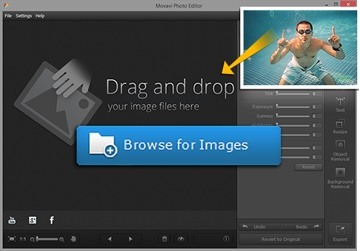
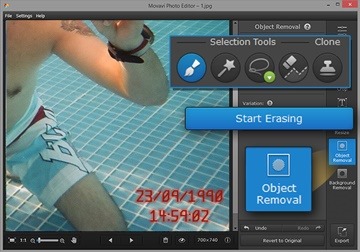
Now, start the application and add your photo. Click on Browse for Images and choose the file from which you want to remove the time stamp. Alternatively, simply drag and drop the picture into the app’s editing area. Now, find the Object removal tool from the menu and paint it all over the area where you see data and time stamp.

Take your time to precisely highlight the element as otherwise you would not get great results. We suggest using the Magic Wand button to do the selection. Click on Start Erasing tool to remove the date stamp. Then apply the stamp tool to get rid of any remaining imperfections.
Remove Photo Stamp from a Photo (3)

Using this tool, you can remove any type of text or caption. Movavi Photo Editor is also very useful for removing any kind of watermark. You just need to ensure that these watermarks or captions do not cover any significant or important portion of the picture.

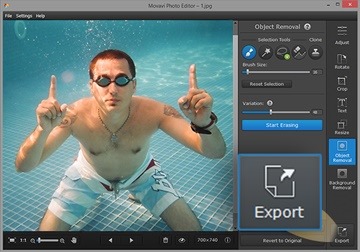
Now that you have removed the time stamp from the photo using Movavi picture editor software, click on the Export button to save the edited image. Give your edited image a name and use any of the popular image formats. We suggest using JPG.
Remove Photo Stamp from a Photo (1)

Of course, you can use the Movavi Photo Editor for much more than removing watermarks and date stamps. This software is one of the most functional, yet most simple-to-use image editing software out there. It takes only a couple of minutes to download and install.

You can use the software for adjusting the brightness, contrast, hue and saturation of the image. Just move the slider to left or right to decrease or increase the effect.

MSI H170I AC PRO, a Mini-ITX motherboard for Skylake

MSI H170I AC PRO is a mini ITX motherboard and comes with support for sixth-generation Intel processors including Celeron, Pentium and Core i-series. MSI H170I AC PRO offers comprehensive options in something that measures 17 cm sq.

MSI H170I AC PRO specs include Soket LGA 1151 Intel H170, two memory slots DDR4 providing support up to 32 GB, 6 Gbps SATA as standard, Turbo M.2 slot, PCI-E x16 3.0 port, WiFi 802.11 ac, Bluetooth 4.2 and USB 3.1. MSI AC H170I PRO will allow users to build high-end solutions in a standard Mini-ITX space.
MSI H170I AC PRO review

Continue reading “MSI H170I AC PRO, a Mini-ITX motherboard for Skylake”

Download CWM TWRP for S3 Neo: Samsung Galaxy S3 Neo CWM custom recovery – root S3 Neo

We now have instructions on how to root the Samsung Galaxy S3 Neo as well as on how to download TWRP for the S3 Neo android phone. TWRP is a custom recovery that has touch support while CWM has no touch screen support. Rooting S3 Neo is possible after installing CWM or TWRP custom recoveries on it.
Download root CWM TWRP for S3 Neo

Installation instructions without ODIN if your phone is on Android 4.3

1. Install TWRP or CWM for S3 Neo (download links given at the bottom of the article)
2. Download SuperSU-v2.45.zip and KNOX-Removal-Script.zip (all links are at bottom).
3. Transfer downloaded zips to SD Card
4. Boot into recovery mode (Volume UP + Home + Power button)
5. Flash SuperSU-v2.45.zip and Knox-Removal-Script.zip
6. Reboot

How to install CWM using odin

1. Download recovery.tar.md5
2. Download ODIN and Samsung USB drivers
3. Boot device in download mode ( Vol down + home + power )
4. Press volume up ( continue ) and connect phone with PC
5. Make sure Odin recognizes your phone ( There should be something like “0:[COM11]” in first box and it will be yellow )
6. Press PDA and navigate to recovery.tar.md5
7. Make sure Re-partition is unchecked
8. Press “Start” and wait few seconds
9. Device will reboot and you will have TWRP recovery on your device ( Boot with vol up + home + power )

If your on S3 Neo Android 4.4.4, then follow these instructions.
1 – Download and install the USB drivers for I9300I; link
2 – Download Odin v3.09;
3 – Download TWRP from this link;
4 – Download and Update SuperSU from here and Knox Removal Script (link) and copy them to your SDCard;
5 – Flash TWRP via Odin;
6 – Boot into TWRP, go to Settings and disable “Enable screen timeout”, then install Update SuperSU and Knox Removal Script;
7 – Reboot;

Android 4.3 download links