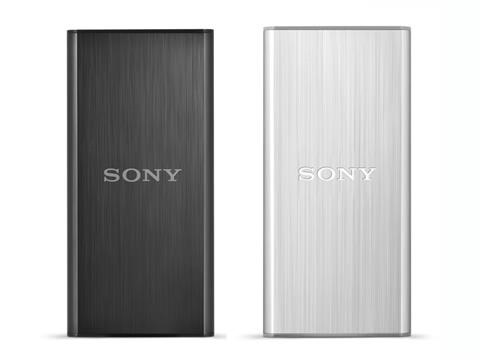
Sony SL-BG1, SL-BG2 SSD are credit card sized

Sony has launched two external SSD devices that are no more than credit cards. The SL-BG2 solid state drive come with 256 gigabytes of storage space while the SL-BG1 model is being offered in only 128GB variant.

This is ideal for ultrabook users that often have to deal with limited storage space.  Both have highly durable built thanks to the brushed aluminum casing that does a good deal of job against vibration, shock and heat.

And since both Sony SL-BG1 and SL-BG2 make use of solid state technology, the data is immediately accessible. In fact you can get up to 290 MB / s if you use it on a USB 3.0 port. This ensures maximum efficiency and reliability.

Sony SL-BG1, SL-BG2 SSD

Available in black and silver metallic colors, you can pre book it on official Sony’s website. 

Medion S10346 Lifetab release date, price and specifications

Medion S10346 Lifetab is all set to go on sale at Aldi Nord on November 27 2014 with a price tag of 199 euro. This Android tablet is powered by the Intel Atom Z3735F quad core SoC that does a fine job in driving its full HD display measuring 10.1 inches.

Medion S10346 Lifetab

Medion is a subsidiary of Lenovo and once again they have trusted Aldi for selling their tablets. At 199 euro, we think it is an excellent deal. It features IPS panel which is extra ordinary for this price.

Medion S10346 Lifetab specifications

* 10.1-inch IPS panel with a resolution of 1,920 x 1,200 pixels
* Intel Atom Z3735F quad-core processor up to 1.83GHz
* 2 GB RAM
* 32 GB internal memory, expandable by microSD card of up to 128 GB
* Android 4.4 KitKat
* 5 megapixel cam back, 2 MP front-Shooter
* Bluetooth 4.0, GPS, WiFi IEEE 802.11 n, infrared
up to 10 hours of battery life
* Stereo speakers on the front page
* microUSB 2.0 with USB host function and miniHDMI
approx 263 x 174 x 8.5 mm
* about 580 grams

The Lifetab S10346 will hit the Aldi Nord on November 27 for 199 euro and it is an absolute cracker deal given its amazing specifications. The tablet will be offered in both black and white colors.

The box includes useful accessories like micro USB cable, micro USB host cable, tablet stand and in-ear headphones.

We are not sure if an update to Android 5.0 will be provided but Medion is giving a whopping three year warranty.

Download Note 4 Launcher, Side softkey, settings and other Apps on Galaxy S4

XDA members have finally been able to port the Samsung Galaxy Note 4 to the S4. This includes Galaxy Note 4 side softkey, settings, launcher, wallpaper picker, ultra power save mode, lockscreen, S-finder, flip board brief, S-planner, European accuweather widget and S-reminder.

For these Galaxy Note 4 applications you will require TouchWiz 4.4.4

1. Note 4 Side Softkey

Download Note 4 Launcher, Side softkey,  settings and other Apps on Galaxy S4

1. Download and unpack my zip from here –> http://www.mediafire.com/?o6audcowsc29see
2. Put EasySideKey.apk im system/app and set correct permissions.
3. Put xml in my zip in system/etc/permissions and set correct permissions.
4. Reboot
5. Go to settings/display/one-handed operation/Side Key
(If you not found it install Note 4 settings)
6. Enjoy Side Key of Note 4

2. Note 4 Settings

Download –> http://www.mediafire.com/download/rr…ngs_Albe95.rar
Unpack and replace in system/priv-app (set correct permissions). Then reboot.

3. Wallpaper Picker

Download –> http://www.mediafire.com/download/74…icker_Note.apk
Put in system/priv-app (set correct permissions) and delete old SecWallpaperPicker. Then reboot.

4. Note 4 Touchwiz Launcher

download Note 4 Touchwiz Launcher

Download –> http://www.mediafire.com/download/37…uchWizHome.apk
Put in system/priv-app (set correct permissions) and delete old SecLancher3. Then reboot.

5. Note 4 UPSM (Ultra Power Save)

1. Download from here xperiacle module.
2. Install as a normal apk
3. Enable it in Xposed and reboot
4. Open it from the drawer and choose "newer kitkat ROM" ( I test both and with the older I face more Force Close)
5. Click on "Proceed" and give it Root access
6. Tap on Reboot now (if not work make a full reboot manually)
7. Open your Filemanager and go to system/app
8. Here delete EmergencyLauncher, EmergencyModeService and EmergencyProvider
9. Download my Emergency Note 4 rar
10. Put my 3 apk inside the rar in system/app and set correct permissions
11. Reboot and open Note 3 Upsm mod from the drawer
12. Choose UPSM ON/OFF
13. Accept the Samsung Terms and condition
14. IMPORTANT: If like me you’ve double tap to sleep module (or some other that change the action with a double tap on statusbar) disable it from xposed and make a soft reboot.
15. Then re-open from the drawer Note 3 UPSM and re-choose Upsm ON/OFF
16. On the popup choose Enable and enjoy Note 4 Upsm
17. To disable it double tab on status bar and a popup for deactivate will shown.

6. Download Note 4 Lockscreen: Put in System/priv-app and set correct permissions. Then reboot.

7. Note 4 S Finder – download link

8. Fliboard Brief (New Magazine) – download link

9. Note 4 S Planner

Download Note 4 S Planner – Unpack rar and put apk in system folder. Remember to delete old SPlanner or SecCalendar_Spen (S5 or S4 version).

10. Note 4 European Accuweather Widget

Download —> http://www.mediafire.com/download/37…te4_Albe95.zip
Install via recovery and be sure to clean cache and data from titanium backup before put widget on homescreen.

11. Note 4 S Reminder

note 4 s reminder app download

Download –> http://www.mediafire.com/?7sqho347h13ux5f

For following Note 4 applications you need to be on TouchWiz 4.4.2 or higher

1. Note 4 S Browser

Download link https://www.mediafire.com/?d05423b33qn5ms2

2. Note 4 Accuweather Widget

Download link https://www.mediafire.com/?nshu7vvtnxbqys9

3. Note 4 S Voice

Download –> http://www.mediafire.com/download/cz…d_phone(2).apk
This should fix "no voice bug" in S Voice.

4. Note 4 S Health

Instruction:
Download and install via recovery. If you don’t have a custom recovery:
1. First of all, uninstall previous version of S Health and Health Service and reboot
2. Unpack the zip
3. Put Health Service in system/app (and set correct permissions)
4. Install S Health as a normal apk
5. Put libPlatform in system/lib (and set correct permissions)
6. Reboot
7. If you have installed from recovery and you face crash when open S Health clear cache and data and delete apk with titanium backup. Then install apk from my zip manually.

5. Note 4 Smart Remote download link

6. Note 4 Geo News (full transparent) download link

7. Note 4 Galaxy Apps Widget (full transparent) download link

Note 4 Task Manager download link

Samsung Gear Manager download link

Snapbiz Card download link

All Together download link

S Memo download link

Story Album download link

Easy Chart for S Note download link

Allview Mobile WI7 is a 7 inch Windows 8 tablet

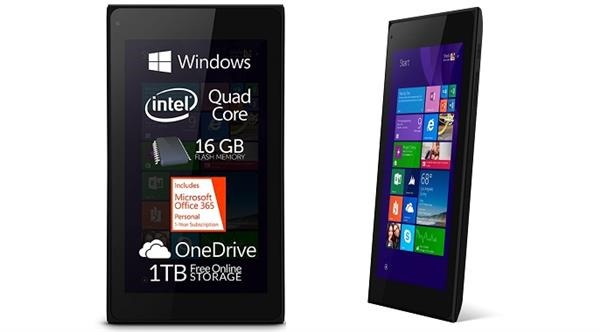
The Allview Mobile WI7 is made by Romanian company and is now officially the cheapest windows 8.1 tablet with 7 inch display. It can be pre ordered directly from the manufacture for 70 euro excluding shipping cost which is 5.99 euro. Delivery of the first lot is set to begin in the coming week.

Of course at 70 euros, you should be ready to make sacrifices with the Allview Mobile WI7. Before we delve into its specifications, we would like to add that you get free Office 365 license for 1 year.

Allview Mobile WI7 specifications

The Allview Mobile WI7 comes with a 7 inch display with 1024 x 600 pixel resolution. It is not known if it is an IPS or TFT panel. However judging by company’s history, we think it is an IPS display. Other specifications include Intel bay trail Z3735G quad core 1.83 GHz processor with 1 gigabytes of memory and 16GB of internal flash storage. Of course you can increase its storage by using a micro SD card slot.

Allview Mobile WI7

In the end this is a win for the consumer as he is getting a super affordable windows 8.1 tablet with 1 year of office 365 subscription.

Moto G 2014: Root guide on Android 5 Lolipop

Moto G 2014 has proved that you do not need to spend a lot to get flagship features. The phone has very good quality and runs vanilla like Android that yields excellent performance. Now you will be able to root your Moto G 2014 thanks to the modified version of the stock kernel with root enabled. An XDA developer member made modifications in the ramdisk that allow the flashing the of SuperSU.

Step 1: Download this: http://downloads.codefi.re/savoca/root/titan
Step 2: fastboot flash boot xt1064_lollipop_boot.img
Step 3: Flash SuperSU

Of course to flash it you need unlocked bootloader.

Moto G 2014 root android 5 lolipop

Root is considered as the main step for doing any sort of development as it grants the developer and user rights to do modification on the phone as per their needs. So if you are a user of Moto G 2014, you will definitely appreciate the progress made so far.

Moto E: Unlock bootloader guide

Before you proceed we shall make it clear that unlocking the bootloader of Moto E voids its warranty.

Also unlocking the bootloader of Moto E will wipe all data from it which means all personal data will be deleted including your applications, photos, messages and settings.

Make sure to take a backup of your entire device data.
Download the Android SDK OR Download the Minimal ADB and Fastboot
Install the latest Motorola USB Drivers on your desktop. Download here.
Put your device in fastboot mode (power off, then press the power and volume down buttons simultaneously).
Open Command Prompt on androidsdk/platform-tools/ (Hold Shift and right click and press open command window here)
Connect your Phone to PC
Type this in the CMD prompt window – fastboot oem get_unlock_data
You will get a return string. Copy it. [Right Click-Mark- Mark the text by pressing the shift key-Now press Ctrl+C]
Paste all the lines together in a notepad. Remove the empty spaces.
Now go to the Motorola Site. Sign in using your Google account or Motorola ID. Scroll down the page and paste the copied string in the field at step #6. Then click on ‘Can my device be unlocked?’, after which a "REQUEST UNLOCK KEY" button will appear at the bottom of page.
To get your unlock key, select the ‘I Agree’ option. Note: You will receive an email with your Unlock Key at the email address you used to log in there.
Important – Copy the 20-character key that Motorola sent you via email. Make sure your device is connected.
Then in CMD type: fastboot devices (To check your device is connected)
Then type: fastboot oem unlock UNIQUE_KEY

Make sure to replace the word UNIQUE_KEY with the unlock code that you get via email. Then hit enter and unlocking process will start. To relock the bootloader, type in this command – fastbook oem lock

Moto E Unlock bootloader guide

How to remove the unlocked bootloader message

Download the logo.zip.
Extract all the files
Reboot to fastboot mode (power + vol down)
Now open cmd and use cd command to go to the directory where you placed the file.
Now Type the command: fastboot flash logo logo.bin
Reboot from the recovery (use vol up to select and vol down to navigate)
Now your bootlogo should be restored back to the normal version

How to get OTA updates after rooting the device

So you have a rooted Moto E and want to get OTA updates even after rooting your device? Here is how.

1. Use the full unroot option from the Super Su.
2. Flash the stock recovery Use Code : mfastboot flash recovery recovery.img
3. Now you’ll be able to get OTA updates as before