How to root Motorola Moto G 2014 2nd generation instructions, download CWM

Thanks to kind folks at XDA we have instructions to root Motorola Moto G 2014 2nd generation phone and judging by the steps it is not exactly a very difficult task.

Since the Motorola Moto G 2014 2nd generation comes boot loader locked, it is mandatory to unlock it before we proceed. You will also need Motorola’s drivers installed on your computer.

Root Motorola Moto G 2014 2nd generation instructions. Also learn how to download clock work mod CWM recovery

1. I assume you have unlocked the bootloader of your phone. The first link in the post explains it.
2. Download the super SU file from here.
3. Copy the super SU file to internal SD card. Power off your phone and go to boot loader mode. You can do this by holding down power + Volume down buttons. Release when you have entered this mode.
4. Connect your phone to your computer and flash the CWM recovery in boot loader mode.
5. Then boot into recovery. Do this by holding down power + volume up button. Flash SuperSU.zip from recovery.
6. Reboot – you have successfully rooted your Moto G 2nd generation model.
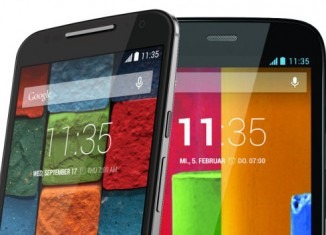
Root Moto G 2014 2nd gen

In case you want to remove the root from Motorola Moto G 2014 you must restore the phone by download and flashing factory firmware.

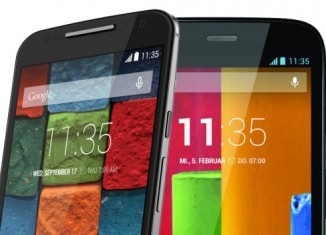
Restore Moto G 2014 2nd gen, download factory firmware

So you have done all sorts of hacks on your Motorola Moto G 2014 2nd generation phone and for some reason you want to revert back to factory settings. For example you have unlocked bootloader of Moto G 2014 and for warranty reasons you must revert back to original firmware.

How to flash and restore the Moto G 2014 2nd gen?

First you download the ROM from here. In the link you will find original ROMs for Germany, USA, English, Canada and Brazil.

XT1063 – Global GSM Single-SIM
XT1064 – US / Canada AWS Single-SIM
XT1068 – Global GSM Dual-SIM
XT1069 – Dual-SIM with Digital TV

Restore Moto G 2014 2nd gen

1. Download the ROM and extract it to a folder
2. Download mfastboot-v2 and Extract it into the same folder [mfastboot Download: http://goo.gl/lTYq4F]
3. Reboot the phone into Boot loader
4. Run Following commands from the Command Prompt after cd-ing to the folder, one by one.

Unlock bootloader on Moto G 2014 2nd gen

When you unlock bootloader on Moto G 2014 2nd gen phone, you open a wide range of possibilities including the ability to root the phone.

You should know that unlocking bootloader voids the warranty. Also it factory resets your phone which means all personal data is deleted from the phone. Ready?

Follow these steps carefully to unlock bootloader on Moto G 2014.

* Make sure to take a backup of your entire device data.
* Download the Android SDK from here.
* Install the latest Motorola USB Drivers on your desktop. Download here.
* Put your device in fastboot mode (power off, then press the power and volume down buttons simultaneously).
* Open Command Prompt on androidsdk/platform-tools/ (Hold Shift and right click and press open command window here)
* Connect your Phone to PC
* Type this in the CMD prompt window – fastboot oem get_unlock_data
* You will get a return string. Copy it. [Right Click-Mark- Mark the text by pressing the shift key-Now press Ctrl+C]
* Paste all the lines together in a notepad. Remove the empty spaces.
* Now go to the Motorola Site.Sign in using your Google account or Motorola ID. Scroll down the page and paste the copied string in the field at step #6. Then click on ‘Can my device be unlocked?’, after which a “REQUEST UNLOCK KEY” button will appear at the bottom of page.
* To get your unlock key, select the ‘I Agree’ option. Note: You will receive an email with your Unlock Key at the email address you used to log in there.
* Important – Copy the 20-character key that Motorola sent you via email. Make sure your device is connected.
* Then in CMD type: fastboot devices (To check your device is connected)
* Then type: fastboot oem unlock UNIQUE_KEY

Here UNIQUE_KEY refers to the unlock code that you received via email.

To relock the bootloader on Moto G 2014 2nd generation phone, go to fastboot and give the command fastboot OEM lock.

moto g 2014 unlock bootloader

How to remove the unlocked bootloader message?

* Download the zip.
* Extract all the files
* Reboot to fastboot mode (power + vol down)
* Now open cmd and use cd command to go to the directory where you placed the file.
* Now Type the command: fastboot flash logo logo.bin
* Reboot from the recovery (use vol up to select and vol down to navigate)
* Now your boot logo should be restored back to the normal version.

Download Android 4.4.4 ROM for Samsung Galaxy S

An XDA user Mackay has released an Android 4.4.4 ROM for the Samsung Galaxy S smartphone. The ROM is based on Android 4.4.4 kitkat and Cyanogen mod. Also to flash it you require Mackay’s own kernel that can be downloaded from here.

The ROM is close to stock and no additional application are included which also means that it is bloatware free. The best thing is that you can flash it over a Cyanogen mod ROM. Here are the installation instructions.

* Do a factory reset
* Flash ROM
* Flash gapps
* Reboot your phone

The ROM is backed by CM11.0 codebase and bnew kernel: 0.692: updated recovery to TWRP 2.8.0.0. The TWRP has orange theme. Video editor and demo video files have been removed to free up more space. 

Mackay kernel settings options include:
* WiFi PM mode selection
* BLX settings
* BLN activation
* Navbar selection
* Low RAM mode selection

Download Android 4.4.4 ROM for Samsung Galaxy S

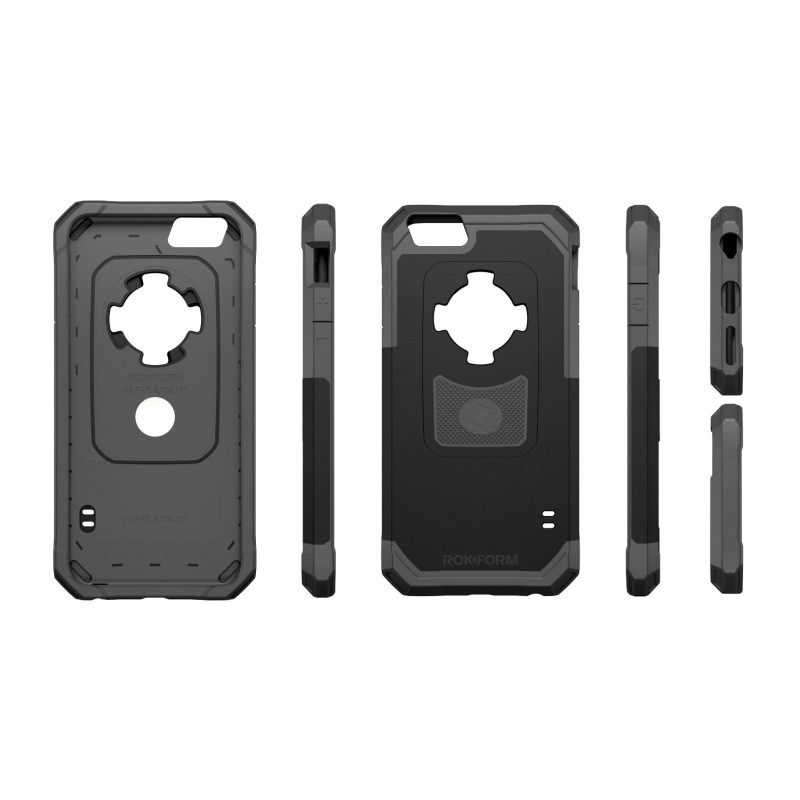
Review of Rokform Sport v3 for iPhone 6

The Rokform Sport v3 for iPhone 6 is current on sale for 39 dollars. Available in five colors, it made of hard plastic with rubber casing.

There are some unique features about it. For instance we love how solid it feels and how nicely it absorbs shocks. It has full button protection and has all required openings for buttons and ports.

Rokform Sport v3 for iPhone 6 Review

In the box you get two swappable back panels – one has removable magnet while the other has a hole that can be used for attaching Rokform’s traditional wall mounting system.

The only downside is the fact that the magnets disables NFC on the phone so you will not be use your iPhone for Apple Pay.

Rokform-Sport-v3-review

A wrist strap is also present in the box. Protective Rokform iPhone 6 Case features:

Dual Compound 6 sided protection (6ft. drop tested)
Shock absorbing soft inner liner
Tough outer polycarbonate shell
Easy-stick magnetic mount, mount most anywhere
Simple snap-in installation
Snap-in Rokform Mounting System (RMS) & Magnetic back
Snap-in Magnetic back
Works with all v3 mounting accessories

Download CM11 for Galaxy S1, Android 4.4 CyanogenMod 11 kitkat operating system

CyanogenMod 11 for the Samsung Galaxy S1 is now available for download which allows Galaxy S users to enjoy vanilla Android experience that is free of bloat ware.

How to download and install CM11 on Samsung Galaxy S 1

Are you first time flashing CM11 to your Galaxy S (or coming from another ROM)?

* If you’re on a ROM prior to 2.3, upgrade to 2.3 is recommended.
* Root your device and install ClockworkMod Recovery.
* Reboot into Recovery using 3-button-combo
* Do a Nandroid backup!
* WIPE (wipe data/factory reset + wipe cache partition)
* Install the ROM from internal sdcard using ClockworkMod Recovery
* Optionally install the Google Addon

Upgrading from CM7/CM9?

* Do a Nandroid Backup
* WIPE (wipe data/factory reset + wipe cache partition)
* Install the ROM from internal sdcard using ClockworkMod Recovery
* Optionally install the Google Addon

Upgrading from CM10/10.1?

* Do a Nandroid Backup!
* Install the ROM from internal sdcard using ClockworkMod Recovery
* You will finally see a "set_metadata_recursive" status 7 error. That is normal.
* Reboot back into recovery (the reboot is required)
* Install the ROM again from internal sdcard using ClockworkMod Recovery
* Optionally restore /data from Nandroid Backup (the update will wipe your /data)
* Optionally install the Google Addon

Upgrading from CM10.2?

* Do a Nandroid Backup!
* Install the ROM from internal sdcard using ClockworkMod Recovery
* Optionally install the Google Addon

Upgrading from another build of CM11?

* Do a Nandroid Backup!
* Install the ROM from internal sdcard using ClockworkMod Recovery