LG is yet to release Android 4.3, yet alone Android 4.4 for Optimus G Pro. However, thanks to XDA, we have a clean AOKP ROM for it.

Continue reading “Download LG Optimus G Pro AOKP Android 4.3 4.4 ROM”
LG is yet to release Android 4.3, yet alone Android 4.4 for Optimus G Pro. However, thanks to XDA, we have a clean AOKP ROM for it.

Continue reading “Download LG Optimus G Pro AOKP Android 4.3 4.4 ROM”
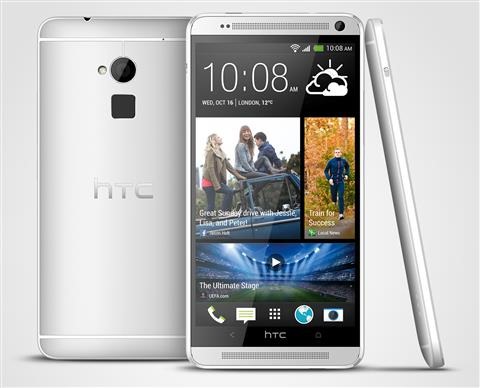
Stock, Odex / Deodexed, pre rooted ROM for the Verizon variant of HTC One Max. This firmware is same as the one you get with your One Max, but is rooted. Of course, you get the usual root utilities like busybox, super user app (super SU), and unsecure boot.img.

Continue reading “Verizon HTC One Max Stock Rooted Odex Deodex ROM”
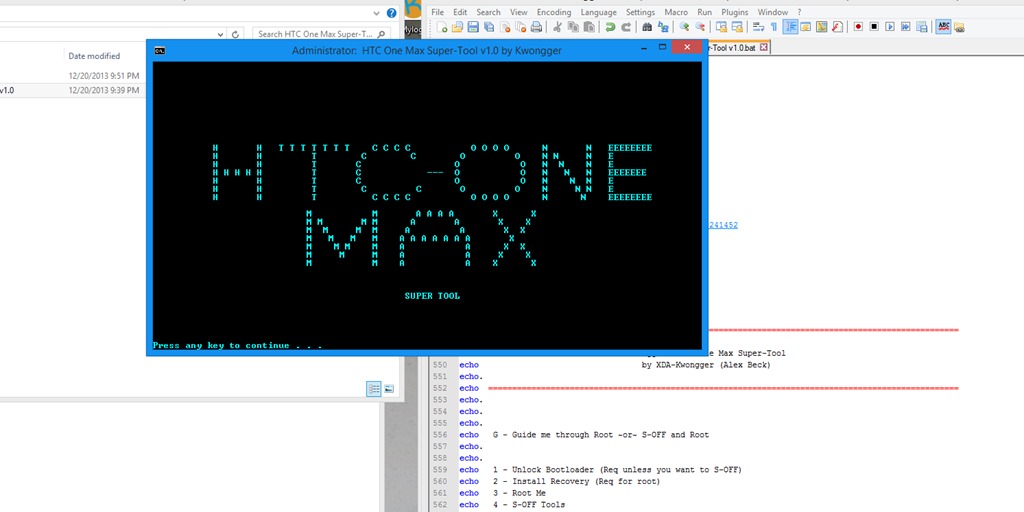
An XDA user has released an all in one tool that can Unlock, Root, S Off, TWRP, CWM, Lock and even Super-CID your HTC One Max – it is indeed the super tool. Just keep in mind that rooting void your phone’s warranty. The super tool works with all editions of HTC Max (including sprint and verizon variants).
Continue reading “HTC One Max: Download Unlock Root, S Off, TWRP, CWM, Lock, Super-CID”
Omni has now been ported to the Oppo N1 Android phone. Make sure you do a backup of everything important you have on your phone because after installing it, data will be lost. You also need to have TWRP on your phone.

Download it from here. Since there are no pre installed Google Apps, you should separately install them from here (no big deal if you do not need it).
You will have to flash it using TWRP – stock recovery would not work if you want to install custom ROMs. To do that, download the file and put it on your SD card. Get into recovery and select the file in TWRP and flash it.
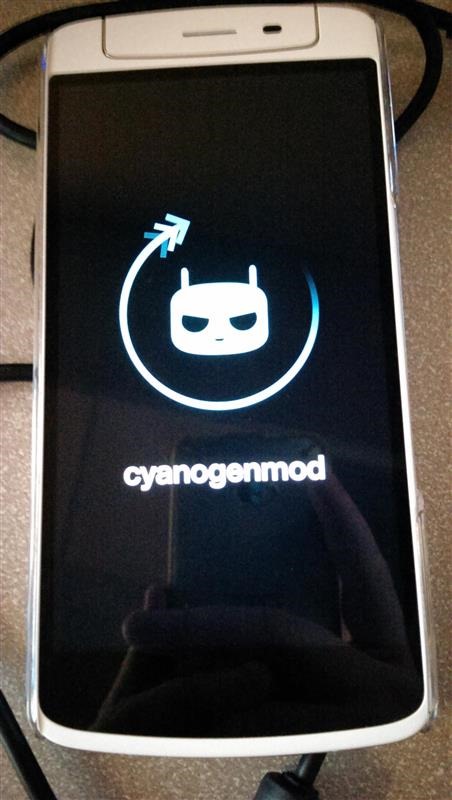
This tutorial will explain how to download CM and install it on your Oppo N1 Android phone. Before you proceed, make backup of anything important you have on your phone. After you done with that, make sure you have TWRP as your recovery. Stock recovery would not work.
Second, it is important to be on stock ROM. It does not matter if you are rooted or not. Now, download the fully flash able ZIP from here. Put it on your SD card and reboot to recovery and flash the ZIP from there.
You are not done yet. Reboot into TWRP and go to Advanced Wipe -> Wipe Dalvik Cache, Cache, and Data.
Thanks to kind folks at XDA, the Samsung galaxy core users can have multi window functionality on their phones. All you have to do is get the multiwindow.apk file from here; put it on the root folder of your phone; reboot to cwm recovery; install my zip from SD card and install it on your phone.
To use multi window on the phone, there is need to have root access, as well as CWM recovery, and can be used on any deodexed Galaxy Core ROM.
For many reasons, you might require a deodexed, zipaligned and debloated ROM for your Samsung galaxy core. The ROM is plain stock, and does not have any bloatware, and is deodexed, and zipaligned. To install, follow these steps. Just make sure to backup your data before proceeding.

1. Download the ROM from here and power off your phone.
2. Boot into CWM recovery by pressing home+power+volume up
3. Select wipe data / factory reset
4. Select wipe cache
5. Flash the zip
6. Do steps 3-4 again.
To do any sort of modding on your Samsung galaxy core, you will need to download and install CWM clockworkmod recovery. While with the stock recovery, you can wipe your phone, clear cache, with the CWM recovery, you can install custom ROMs, make Nandroid backup and even partition your SD card.
First, you will to install Galaxy Core Drivers on your computer. Download them from here. To get CWM recovery, you will need ODIN (download link) and CWM file (download link).

Before you proceed, ensure that, you have 30 percent or more battery. Copy Recovery.tar File In ODIN Folder. Open settings on your phone and go tot developer options > tick USB Debugging. Now, turn off your phone.
Now, go into download mode. You can do that by pressing and holding the Volume Down + Home Key + Power Key. Do that for few seconds until download screen comes up. Press Volume Up key to proceed.
Connect your phone via USB cable and open ODIN. Click on PDA button and select recovery.tar file. Press the start button to start the process. It should display pass.
Samsung Galaxy Core users get only 8GB of flash storage, out of which only 4GB is available to the user. While you can use micro SD card to expand storage, only internal storage is used for storing apps. Here is a guide on how make everything store on external micro SD card.
1. First root your Samsung Galaxy Core by following step by step instructions from here.
2. Now, download external2internal app from Play store.
3. Start external2internal app and grant it root access. Tick send rescan and use per default options.
4. Then press Original Mounting Point And Change To ‘storage/sdcard0’.
5. Now, select original External Mounting Point And Change To ‘storage/ExtSdCard’.
6. Tap Ext.Sdcard Device Access and Change The Value From 179:49 to 179:33.
7. Now press back button and tick, At Boot Option and select External>Internal.
8. Wait for some time and reboot your Samsung Galaxy Core.
If still no success, go to external2internal app again Press External>Internal.
Instructions for how to root the Samsung Galaxy Core are now available. Rooting will let you install applications that require super user access. Here is step by step instruction on how to root the Samsung Galaxy Core.