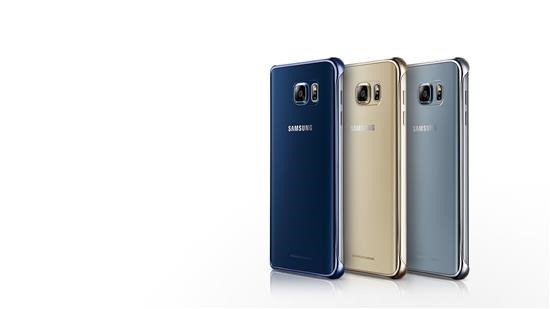
Lenovo K3 Note Android Lollipop ROM: Download android 5.1.1 ROM for the Lenovo K3 Note

You can download un official Lenovo K3 Note Android Lollipop ROM now. This ROM is based on cyanogenmod 12 which bring android 5.1.1 lollipop to this android phone. To flash this ROM, you must have Lenovo K3 Note CWM or TWRP as these are custom recoveries allowing you to install third party software and ROMs on it.

download Lenovo K3 Note Android Lollipop ROM

What is included in this ROM:
* Status Bar
* Clock & Date Options
* Battery Options
* Battery Bar Options
* SuperUser Indicator
* Bluetooth Indicator
* Brightness Control
* Mobile & Wifi Icon Options
* Notification & System Icon Options
* Network Traffic Monitor
* Breathing Notifications
* Bliss Logo Option
* Notification Count
* Wifi SSID in status bar (see Wi* Fi advanced options!)

Navigation & Button Options
* Set Navigation Ring Targets
* Backlight Brightness & Timeout
* Overflow Button Settings
* Navigation Bar Toggle
* Set Navigation Buttons, Layout & Dimension
* Double Tap to Sleep
* Power Button End Call Option
* App bar incl. open app in floating window via long* tap

Recents Options
* Memory Bar
* Clear All Button Tweaks
* Clear All tasks
* Clear All Recents Location
* Option to show Google search bar in recents Menu
* OmniSwitch (Option to replace recents menu with Omniswitch)
* Open app in floating window

Notification Drawer
* Status Bar Header (Weather)
* Tile Options
* Flashlight Option
* Custom Color Tile Options (Set Background, Icons & Text)
* Quick Setting Options
* Quick & Smart Pulldown
* Brightness Slider Toggle
* Vibrate, Detailed Wifi View & Advanced Location Options
* SlimActions Tile
* Auto Close Panel
* Force Expanded Notifications
* Open app in floating window via long* tap and then floating icon

Heads Up Notifications

Lockscreen Options
* Long Press Lock Icon to Sleep
* Shortcuts
* Bottom Corner Targets
* Weather Options
* Customize Text & Icon Colors (incl. carrier label)
* Clock Widget Settings
* Music Visualizer Options
* Power Button Lock Options
* Lock Method Options

Power Menu Options
* Power Off
* Reboot
* One Click Reboot
* Screenshot (with delay option)
* Screen Record
* Profile Switcher
* Airplane Mode
* User Switcher
* Settings Shortcut
* Device Lockdown
* Sound Panel
* Flashlight

Gesture Anywhere
* Location Options
* Trigger Regions

Animations
* IME Animations
* Toast Animations
* Listview Animations
* System Animations
* Scrolling Cache
* Scrolling Modifiers

App Circle Bar
* Included Apps
* Trigger width, position and height

Sound Options
* Link Ringtone & Notification Toggle
* Media, Alarm, Ring & Notification Sound Options
* Volume Steps
* Volume Panel Timeout
* Interruptions
* Launch Music Apps
* Dial Pad Tones
* Screen Locking Sound
* Touch Sounds
* Charging Sounds
* Camera Shutter & Screenshot Sounds
* Safe Headset Volume
* Less Frequent Notifications
* Media Control
* Vibration Options

Display & Light Options
* Smart Cover
* Adaptive Brightness
* LiveDisplay
* Rotation
* Double Tap to Sleep
* Sleep Time
* Wake on Plug
* Cast Screen
* Expanded Desktop
* Daydream
* Font Size
* DPI
* Battery Light

Notification Manager
* Device Lock Options
* Block App Notifications
* Disable Persistent Info
* Priority App Notifications

More Stuff Included

AudioFX Equalizer

* SuperSU – Huge thanks to @Chainfire
* BlissPop Wallpapers (via launcher’s Wallpapers)
* Home Launcher Option
* CM Camera
* User Profiles
* System Profiles
* Location Options
* Security Options
* Privacy Options
* Accounts & Sync
* Language & Input
* Backup & Reset
* Date & Time
* Accessibility
* Printing
* Developer Options
* Rom & Hardware Information
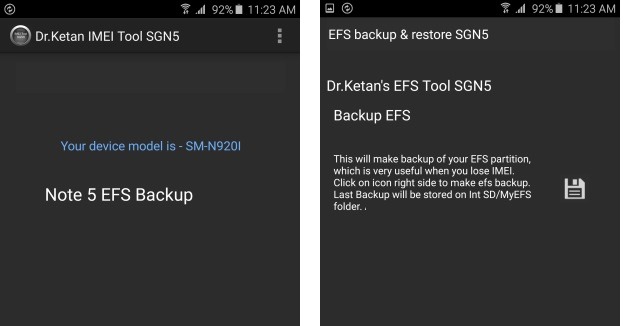
Galaxy Note 5 IMEI backup tool download

IMEI backup tool is available for the Samsung Galaxy Note 5. It is recommended that you download and use this tool as messing around with Note 5 custom ROMs can do some damage on your expensive android phone. You must root Galaxy Note 5 before using this tool, otherwise it would not work. This tool backs up EFS that contains IMEI. The files are stored in Device storage/MyEFS.

Download Galaxy Note 5 IMEI backup tool

There are two versions of the Galaxy Note 5 IMEI backup tool – free and paid. Here are the differences between the two.

* Both version makes backup in same format and no difference in backup.
* Pro version have option to Restore with single click
* Free version will save file in MyEFS and if you make next backup it will replace older one. While play store version every time creates new folder with date, Time and your IMEI stamp so you can keep multiple backup as well no confusion about which backup is made when and on which device. Also it makes copy of build.prop so you can get idea you were on which ROM when backup created)
* Play store version give notification in case backup not created.
* Weekly Auto backup feature available on play store version.
* PIT creator. Play store V1.1 added option to create PIT file from existing layout

Momo7w Windows 10 clean install: Download Momo7w windows 10 drivers

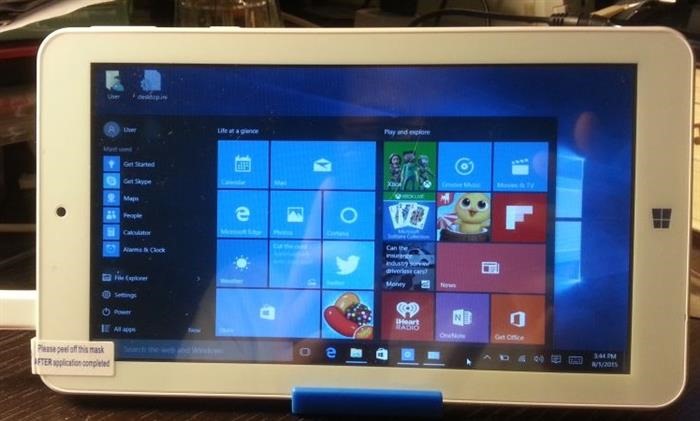
Momo7w is a very popular windows tablet that is very popular all over the world due to its low price and the fact that it provides full windows experience at such a low price tag. It comes pre loaded with Windows 8.1 32 bit operating system and while you can upgrade to Windows 10 for free, there is not adequate storage space to do the upgrade over Windows 8.1, so the only way to get the Windows 10 up and running on the Momo7w is by doing a clean install of windows 10 on Momo7w. After that you will be downloading Momo7w windows 10 drivers and installing them after installation of W10 OS is complete.
Momo7w Windows 10 install, download Momo7w W10 drivers

Continue reading “Momo7w Windows 10 clean install: Download Momo7w windows 10 drivers”

Download Xperia Z2 tablet Android 6 Marshmallow

You can now download un official version of Android 6.0 marshmallow on your Sony Xperia Z2 tablet. This ROM is based on AOSP Android M build and is very easy to install. Everything except camera is working on it and since not a many of use cameras on our tablet devices, it would not bug us much. Sony is taking quite a lot of time to push Android 6 marshallow for the Xperia Z2 tablet users and fortunately, thanks to folks at XDA, Xperia Z2 tablet users will be able to download android 6 on their tablets.
Download Xperia Z2 tablet Android 6 Marshmallow

Continue reading “Download Xperia Z2 tablet Android 6 Marshmallow”

Enable Call Recording on Xperia Z5: Deodexed Zipaligned ROM for Xperia Z5 – disable data notification

Enable call recording on Sony Xperia Z5

Fully Deodexed Zipaligned custom firmware for the Xperia Z5 is now available that also lets you disable data notification

A new deodexed ROM for Sony Xperia Z5 is available that gives you ability to record calls on Xperia Z5. This ROM is based on the latest official stock Xperia Z5 firmware and is fully deodexed, zipaligned with R22.0.1 SDK. It is pre rooted and has busy box and SQL lite pre installed as well. It is fully debloated so you will not find any junk apps in there.

Other nifty features of this Deodexed Zipaligned ROM include Faster scrolling; Faster open camera app; Increased camera picture quality; Speed optimizations; Disabled Scrolling Cache; Aosp browser ; Fixed write sdcard ; Radio without headset ; Disabled data notification ; Dynamic colors navbar and status bar ; 32 DPI ; Ambient display ; Autostarts in settings ; Increased sound and headphone volume and Animations speed control.
Enable Call Recording on Xperia Z5 Deodexed Zipaligned ROM for Xperia Z5 disable data notification

How to install this ROM on Xperia Z5

1 – Unlock bootloader – http://unlockbootloader.sonymobile.com/
2 – Install lollipop firmware
3 – For e68xx install recovery and kernel for your device – thanks to AndroPlus
4 – For e66xx install twrp-2.8.7.0-E6653-20151130_material.img and kernel for your device – thanks to AndroPlus
5 – Copy ROM to ext sdcard
6 – Enter to recovery
7 – Make a FULL Wipe on aroma if come from another FW, before installing ROM
8- Install rom for your device
9 – Reboot
10 – Enjoy

Root Xperia Z5: Install TWRP on Sony Xperia Z5 – rooting instructions for Sony Xperia Z5

It is now quite easy to add TWRP on the Sony Xperia Z5. You can do this by installing the new root kernel zip archive. After installing this archive on your Xperia Z5, your phone’s LED will be lit for three seconds and it will vibrate once too.

Root TWRP on Sony Xperia Z5

Now you can press the volume up button to run the TWRP or press volume down to turn recovery from fota kernel partition. Keep in mind that it leaves a copy of new boot image in the internal storage of SD card if you want to save it somewhere else. You can flash it later with flashboot if required.

After installing TWRP on Z5, you will be able to install custom ROMs on it and do all sorts of hacks on it. Keep in mind that the warranty will be void after installing TWRP and doing root on it. To revert back, you can install stock Xperia Z5 firmware on it.

Download Sony Xperia Z5 Stock Firmware: EU and DE

If you are looking for Sony Xpeira Z5 stock firmware, we have got you covered. We have got hold of EU and DE stock firmwares. This would not wipe the DRM keys. You will need latest version of flashtool for Xperia Z5.

Download Sony Xperia Z5 Stock Firmware EU and DE

1. Open the Xperia Z5 flashtool and choose the firmware you downloaded earlier. Download links are present at bottom of this article. If you do not wish to delete any data on your Sony Xperia Z5, uncheck userdata.sin file. This way all data will remain intact on your phone.
2. Turn off the Xperia Z5 phone and when the Flashtool pops up, connect the Z5 to the PC and hold down volume down button. Start the flashing process now.

It might stall for about 5 minutes on “system.sin” but it will finish the flashing process eventually.

About unlocking bootloader. Be aware that unlocking your bootloader will cause permanent loss of DRM keys, and hence camera functionality, etc. Until we have a root exploit (if we ever do) for locked bootloaders, we can’t backup the TA partition and preserve our DRM keys.

PS: If your phone is not recognized when connect it to the PC, try installing official Sony drivers from here.

Download Official S3 Neo Android 4.4.4 update

Official Samsung Galaxy S3 Neo update is now available from download. This update will upgrade your android device to android 4.4.4 kitkat. This phone was launched in april with android 4.3 onboard but has now been upgraded to Android 4.4.4 kitkat.
Download Official S3 Neo Android 4.4.4 update

This S3 Neo comes with Snapdragon 400 compared to Exynos in the non Neo S3 version. This new update brings more fluid interface, transparent status bar and available for download via KIES and OTA. You can also download it as full ROM from link given below.

You can root S3 Neo on android 4.4.4 by following instructions given here. Use ODIN to flash this ROM.

Root Note 5 SM-N920 Exynos android phone

You can now root SM-N920 version of Samsung Galaxy Note 5. For this you require TWRP Note 5 custom recovery and one of these models, SM-N920C / CD / G / I, SM-N9200 and SM-N9208_SEA. I have been told that SM-N9208_TW works as well but I have not tested it. Rooting instructions are given below.
Root Note 5 SM-N920

  1. If you have systemless root installed, then you must REMOVE it as this kernel will auto-root a proven and stable 2.52 binary into system.

    Open SuperSU app
    Select "Full unroot" option
    Reboot (or flash kernel)
    Re-install SuperSU app

  2. Uninstall any CPU control apps, tweaks and init.d scripts etc.
  3. Recommend: Disable or remove KNOX (you can disable with Synapse once kernel is flashed)
  4. Install Synapse app from Google Play and rate it ☆☆☆☆☆ !!
  5. Device Settings:

    Enable Developer Options > OEM UNLOCK
    If flashing from any custom kernel with Synapse app > Device settings > Applications > Synapse > Force Stop > clear data

  6. If not installed > Install SuperSU from Google Play:
  7. N9200/N9208: unlock your bootloader >> Install and run CROM service unlock app from Galaxy App Store (this will probably wipe your accounts). If you have problems with CROM, try without it !
  8. Boot into custom recovery and flash SkyHigh_kernel____.zip FOR YOUR DEVICE and reboot
  9. After boot:
    a) wait at least 120 secs to stabilize
    b) Open Synapse
    c) Tap "Understood"
    d) DO this step so some defaults are set !!

    1. tap the square menu button top right hand corner
    2. tap the three dots button
    3. "select all globally"
    4. tap the back button next to it
    5. apply

* Based on official Samsung source: Samsung OSRC
* ramdisk source:
N920C/CD/I/G XXU2APA2
N9200 ZCU2AOL2
N9208 XXU2AOL1
* Compiled with Linaro gcc-linaro-4.9-2015.02-3-x86_64_aarch64-linux-gnu
* Linux 3.10.96
* AUTO-ROOT binary v2.52 & Install busybox v1.24.1-Dorimanx
* KNOX WARRANTY VOID: 1
* SELinux PERMISSIVE  (for Titanium Backup and other apps to work correctly)
* adb insecure
* stock dt.img
* init.d script support (drop in script & set permissions to 755 or 777 and reboot)
* DEEP SLEEP FIX
* IN-CALL REBOOT BUG "FIX"
* Possible Screen Mirroring / AllShare Cast fix
* Secure storage = false (should prevent WIFI settings & passwords wiping on reboots)
* RAM management tweaks
* GearVR reported working (depends on ROM/firmware version installed)
* Synapse app support for many kernel configurations + more.
* Many descriptions are in the app. If you require more info, don’t be lazy, please SEARCH like I did