Galaxy Note 5 IMEI backup tool download

IMEI backup tool is available for the Samsung Galaxy Note 5. It is recommended that you download and use this tool as messing around with Note 5 custom ROMs can do some damage on your expensive android phone. You must root Galaxy Note 5 before using this tool, otherwise it would not work. This tool backs up EFS that contains IMEI. The files are stored in Device storage/MyEFS.
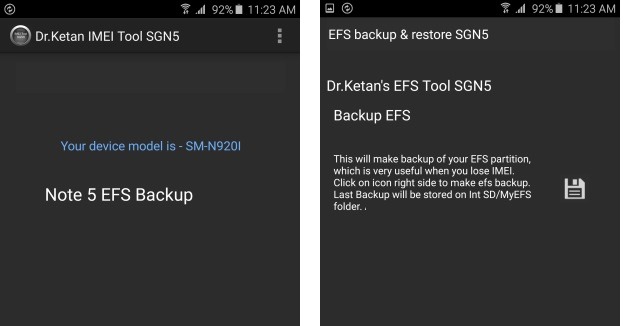
Download Galaxy Note 5 IMEI backup tool

There are two versions of the Galaxy Note 5 IMEI backup tool – free and paid. Here are the differences between the two.

* Both version makes backup in same format and no difference in backup.
* Pro version have option to Restore with single click
* Free version will save file in MyEFS and if you make next backup it will replace older one. While play store version every time creates new folder with date, Time and your IMEI stamp so you can keep multiple backup as well no confusion about which backup is made when and on which device. Also it makes copy of build.prop so you can get idea you were on which ROM when backup created)
* Play store version give notification in case backup not created.
* Weekly Auto backup feature available on play store version.
* PIT creator. Play store V1.1 added option to create PIT file from existing layout

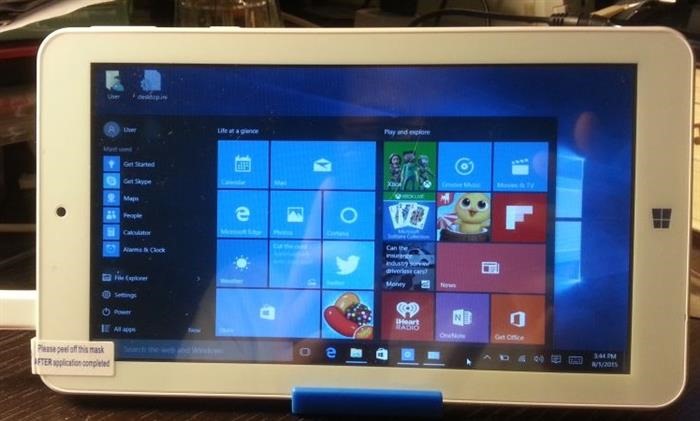
Momo7w Windows 10 clean install: Download Momo7w windows 10 drivers

Momo7w is a very popular windows tablet that is very popular all over the world due to its low price and the fact that it provides full windows experience at such a low price tag. It comes pre loaded with Windows 8.1 32 bit operating system and while you can upgrade to Windows 10 for free, there is not adequate storage space to do the upgrade over Windows 8.1, so the only way to get the Windows 10 up and running on the Momo7w is by doing a clean install of windows 10 on Momo7w. After that you will be downloading Momo7w windows 10 drivers and installing them after installation of W10 OS is complete.
Momo7w Windows 10 install, download Momo7w W10 drivers

Continue reading “Momo7w Windows 10 clean install: Download Momo7w windows 10 drivers”

Download Xperia Z2 tablet Android 6 Marshmallow

You can now download un official version of Android 6.0 marshmallow on your Sony Xperia Z2 tablet. This ROM is based on AOSP Android M build and is very easy to install. Everything except camera is working on it and since not a many of use cameras on our tablet devices, it would not bug us much. Sony is taking quite a lot of time to push Android 6 marshallow for the Xperia Z2 tablet users and fortunately, thanks to folks at XDA, Xperia Z2 tablet users will be able to download android 6 on their tablets.
Download Xperia Z2 tablet Android 6 Marshmallow

Continue reading “Download Xperia Z2 tablet Android 6 Marshmallow”

Enable Call Recording on Xperia Z5: Deodexed Zipaligned ROM for Xperia Z5 – disable data notification

Enable call recording on Sony Xperia Z5

Fully Deodexed Zipaligned custom firmware for the Xperia Z5 is now available that also lets you disable data notification

A new deodexed ROM for Sony Xperia Z5 is available that gives you ability to record calls on Xperia Z5. This ROM is based on the latest official stock Xperia Z5 firmware and is fully deodexed, zipaligned with R22.0.1 SDK. It is pre rooted and has busy box and SQL lite pre installed as well. It is fully debloated so you will not find any junk apps in there.

Other nifty features of this Deodexed Zipaligned ROM include Faster scrolling; Faster open camera app; Increased camera picture quality; Speed optimizations; Disabled Scrolling Cache; Aosp browser ; Fixed write sdcard ; Radio without headset ; Disabled data notification ; Dynamic colors navbar and status bar ; 32 DPI ; Ambient display ; Autostarts in settings ; Increased sound and headphone volume and Animations speed control.
Enable Call Recording on Xperia Z5 Deodexed Zipaligned ROM for Xperia Z5 disable data notification

How to install this ROM on Xperia Z5

1 – Unlock bootloader – http://unlockbootloader.sonymobile.com/
2 – Install lollipop firmware
3 – For e68xx install recovery and kernel for your device – thanks to AndroPlus
4 – For e66xx install twrp-2.8.7.0-E6653-20151130_material.img and kernel for your device – thanks to AndroPlus
5 – Copy ROM to ext sdcard
6 – Enter to recovery
7 – Make a FULL Wipe on aroma if come from another FW, before installing ROM
8- Install rom for your device
9 – Reboot
10 – Enjoy

Root Xperia Z5: Install TWRP on Sony Xperia Z5 – rooting instructions for Sony Xperia Z5

It is now quite easy to add TWRP on the Sony Xperia Z5. You can do this by installing the new root kernel zip archive. After installing this archive on your Xperia Z5, your phone’s LED will be lit for three seconds and it will vibrate once too.

Root TWRP on Sony Xperia Z5

Now you can press the volume up button to run the TWRP or press volume down to turn recovery from fota kernel partition. Keep in mind that it leaves a copy of new boot image in the internal storage of SD card if you want to save it somewhere else. You can flash it later with flashboot if required.

After installing TWRP on Z5, you will be able to install custom ROMs on it and do all sorts of hacks on it. Keep in mind that the warranty will be void after installing TWRP and doing root on it. To revert back, you can install stock Xperia Z5 firmware on it.

Download Sony Xperia Z5 Stock Firmware: EU and DE

If you are looking for Sony Xpeira Z5 stock firmware, we have got you covered. We have got hold of EU and DE stock firmwares. This would not wipe the DRM keys. You will need latest version of flashtool for Xperia Z5.

Download Sony Xperia Z5 Stock Firmware EU and DE

1. Open the Xperia Z5 flashtool and choose the firmware you downloaded earlier. Download links are present at bottom of this article. If you do not wish to delete any data on your Sony Xperia Z5, uncheck userdata.sin file. This way all data will remain intact on your phone.
2. Turn off the Xperia Z5 phone and when the Flashtool pops up, connect the Z5 to the PC and hold down volume down button. Start the flashing process now.

It might stall for about 5 minutes on “system.sin” but it will finish the flashing process eventually.

About unlocking bootloader. Be aware that unlocking your bootloader will cause permanent loss of DRM keys, and hence camera functionality, etc. Until we have a root exploit (if we ever do) for locked bootloaders, we can’t backup the TA partition and preserve our DRM keys.

PS: If your phone is not recognized when connect it to the PC, try installing official Sony drivers from here.