Rapoo E2710 and E6700 wireless keyboards launched: Rapoo E2710 E6700 specifications

Rapoo E2710 E6700 review

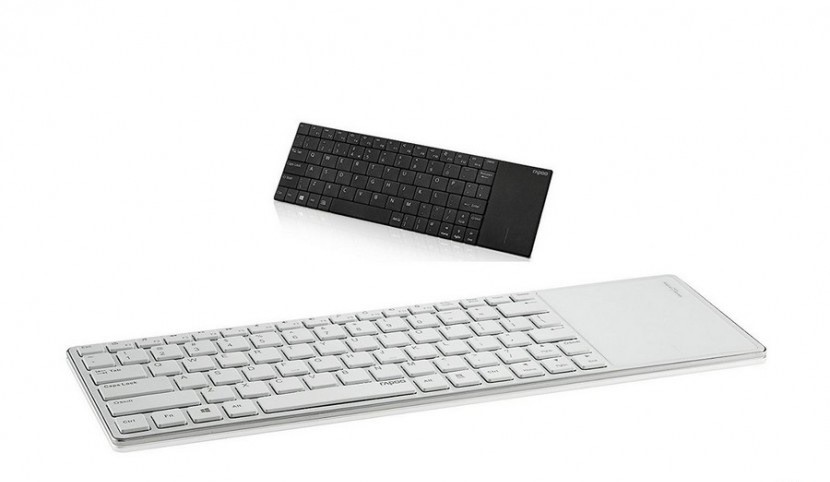
Rapoo E2710 and E6700 have been launched and we have their specifications available as well. These two are Wi-Fi and Bluetooth keyboards respectively which will be preferred by those who hate those wireless dongles. They will also be loved by those who like to type comfortably sitting on your sofa at home, without worrying about the usual cables.

Continue reading “Rapoo E2710 and E6700 wireless keyboards launched: Rapoo E2710 E6700 specifications”

Enable FM Radio on Microsoft Lumia 950 and Lumia 950XL

Enable FM Radio on lumia

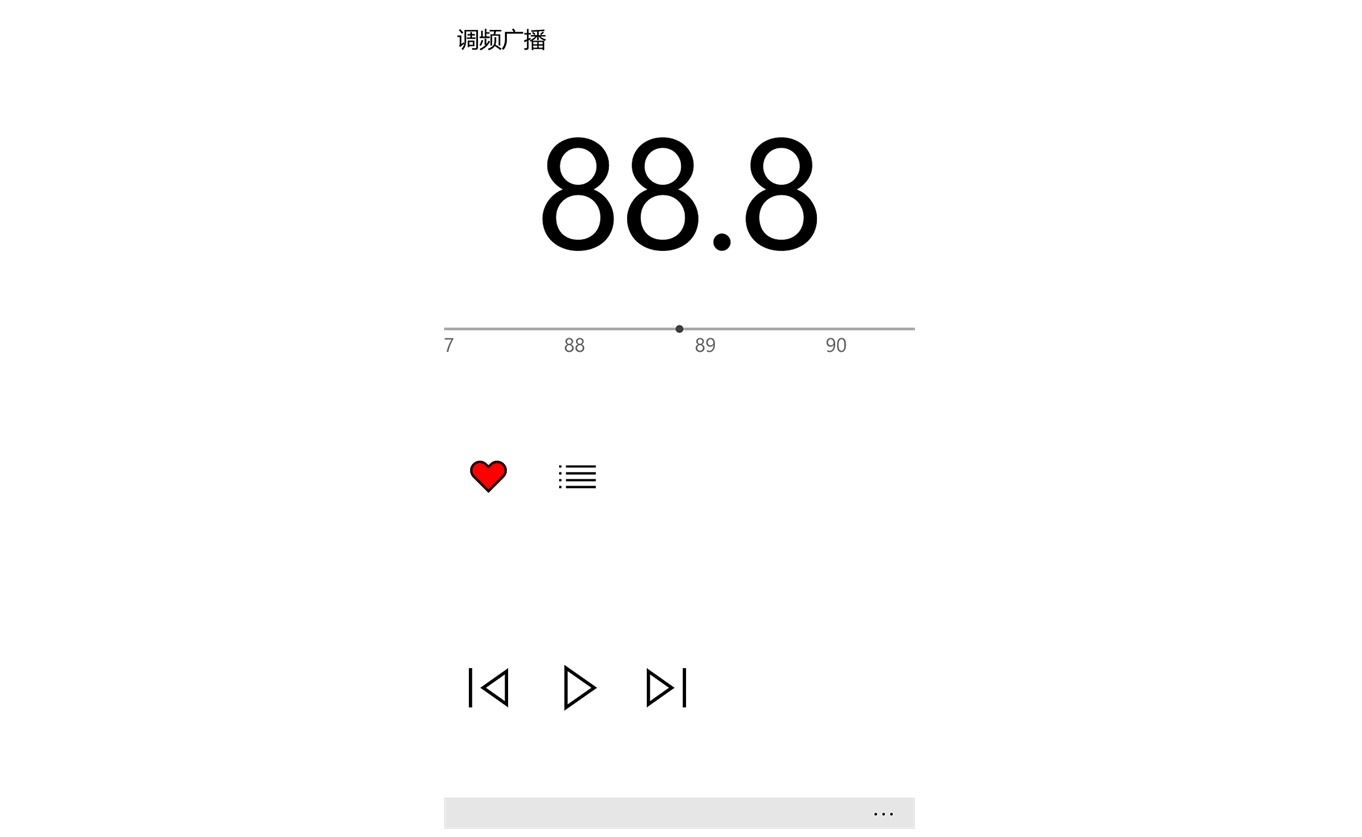
It has been a while since Microsoft removed the official FM radio app from windows phone. A lot of people complained about it as the stock FM radio app on the Lumia and other windows 10 mobile devices was working just fine. Another reason why so many people were complaining about the removable of FM radio app is the fact that all the apps available on the store were either paid or have advertisements inside the app which can ruin user experience.

Continue reading “Enable FM Radio on Microsoft Lumia 950 and Lumia 950XL”

LG V10 Rooted Stock ROM: LG H901 V10 Busybox rooted firmware

If you do not like messing with system and want root access, check out this LG V10 firmware that is stock, rooted and has busybox installed. The only requirement is you need to have LG V10 TWRP pre-installed. This ROM is only for the H901 variant.

LG V10 Rooted Stock ROM

It is completely stock, so even the junkware is there but since you have root, you will be able to uninstall it using any root tool. You can download the ROM from here.

Use the TWRP to flash it. Wipe is not needed but we advise to do it to avoid dealing with unexpected bugs later. It is understood and obvious that after installing this pre rooted ROM, you will not receive any OTA update but you can simply flash stock ROM again to get to that. For the geeks, this ROM only reflash the system and boot partitions. It does not overwrites recovery.

Download LG V10 TWRP 3.0 Custom Recovery: LG-H960A V10 custom recovery

LG V10 H960A TWRP 3.0 Custom Recovery

TWRP custom recovery for LG-H960A, more popularly known as LG V10 is now available for download. With LG V10 TWRP 3.0 custom recovery, you will be able to install custom ROMs and all sorts of LG V10 related hacks. To install it, you must have Android Marshmallow onboard. If you do not have it or still have not received it, you can use LG Bridge to fetch it. Also, bootloader needs to be unlocked.

LG V10 H960A TWRP 3.0 Custom Recovery

Another things to keep in before flashing LG V10 TWRP 3.0 custom recovery is that you will loose all the data. So make sure you have all the important stuff backed up.

Now is time to flash TWRP (twrp-3.0.2.0-0-h960a.img.zip (unpack .zip to get flashable .img)). I am assuming you have ADB and flashboot drivers installed on your computer. Connect your LG V10 to computer, fire up ADB and type in these commands.

adb reboot bootloader
fastboot flash recovery recovery.img

After typing in first command, your phone will reboot to fastboot screen. Second command flashes TWRP on it. Now, turn off your phone completely. For that, hold power button or take battery out. Do not reboot it. Now, put battery in and press power and volume down button. You will see the nice LG logo and that very moment, release power button while keeping the volume button down and then, press power button again.

You will get option to do factory reset and if you have done everything correctly. Make use of volume and power button and choose yes – twise. You will now be greeted with TWRP. Now, it is SuperSU to get root. Go into TWRP and type in this to root it.

adb push BETA-SuperSU-v2.74-2-20160519174328.zip /sdcard/supersu.zip

LG G2 Android 7 Nougat ROM for d80x, ls980, vs980

Download LG G2 Android 7 Nougat ROM for d80x, ls980, vs980

Folks handling android ice cold project have churned out android 7 nougat ROM for the LG G2 for all of its variants including d80x, ls980 and vs980. This is based on AOKP so you get stock android which means no bloatware. To flash this LG G2 Android 7 Nougat ROM, you will need the following.

* Custom recovery (TWRP)
* For the best experience upgrade to stock lollipop, Then root, then install TWRP
* Do not ever install any Bootstack
* Clean flash if coming from another ROM or CM 14.x (no dirty flash)
* Don’t do it if you don’t know it
* ROM has gapps persistance in between dirty flashes

We urge you to do a full wipe before installing the ROM. The developer of this ROM has not specified any bugs so we are expecting it to run smooth on your LG G2 phone.

Galaxy Mega Android 7 Nougat ROM: Download Android 7 for i9152, i9150 for Samsung Galaxy Mega–LineageOS Android 7 firmware for Galaxy Mega

Galaxy Mega Android 7 Nougat ROM

LineageOS is available for the Samsung Galaxy Mega 6.3 and 5.8 and this gives you latest Android 7 Nougat for the three old phone. LineageOS is based on AOSP project. Everything is working except for the second SIM card slot. Also, screenshot feature is not working and recent app thumbnails are coming out to be blank.

Everything is working including Wi-Fi, Bluetooth, RIL (Calls, SMS, Mobile Data), Sensors (Accelerometer, Compass, Light, Proximity, etc.), Camera, Video (playback & recording), Audio (playback & recording) and GPS.

Installation instructions:

* Install a custom recovery with SELinux support or latest CWM Galaxy Mega recovery.
* Download the latest build.
* Wipe data/factory reset if coming from stock or another ROM (You may get a “staus 7” error if you fail to wipe.)
* Flash the ROM and then GApps and reboot your phone

It is an amazing firmware for those who are looking for bloatware free experince on their android phone. It also has support for f2fs and to enable that, you just have to download the modified TWRP recovery from here and flash it. Make sure not to flash a kernel that does not support F2FS. In case, you want to go back to ext4 format, you will have to format the data and cache with Galaxy Mega’s TWRP recovery to ext4 format.

Galaxy Note 3 Neo AOSP ROM brings stock android

Cosmic OS for the Samsung Galaxy Note 3 Neo has been released. This custom ROM is made on android open source project whose short form is AOSP. Its developer claims that he has further tweaked it for best performance battery life enhancements.

Galaxy Note 3 Neo AOSP ROM

Keep in mind that the first boot will take some time and it is completely normal for your device to loop a few times. Developer does mention that there is no guarantee that it will work normally if you use a custom kernel.

Here are the list of features added:

Statusbar customizations
Brightness Slider
Enable/Disable Show Notification Count
SuperUser Indicator Switch
Double Tap To sleep Statusbar
Carrier Label
Carrier Label Switch
Clock Customizations
Time & date
Day & date Toogle
Center/Right/Left Clock Choice
Date Format
Battery % Text
Network Traffic Indicator
Network Traffic Arrows Switch
Incoming/OutGoing Traffic
Statusbar Cosmic Logo
Cosmic logo Color
Cosmic logo Position
StatusBar Ticker
Ticker Text color
Ticker Icon Color
Animations
Gestures
Recents Panel
Full Screen Recents
Recents Styles
Clock Widget
CLock And Alarm Customizations
Weather Panel Customizations
Calender Events
Navbar Tuner
LockScreen Customizations
Lockscreen Bottom Shortcuts
Lockscreen General Shorcuts
100+ Icons for Shortcuts
Lockscreen Media Art/Enable Disable
Quick PIN/Pattern Unlock
LockScreen Wallpaper
Lockscreen Weather Widget
Lockscreen Icons Color
Quick Settings Draggable Tiles
Customizable Tiles
Dyanamic Tiles Adjustment
Number of columns/rows
Notification Drawer
LongPress Toogles to Enter Settings
Disable Immersive Mode Messages
Force Expand Notification
Quick PullDown
Smart Pulldown
Buttons Customisations
Advanced Reboot Menu
Power Menu Customizations
Power Off
Reboot(Recovery, Bootloader, Soft Reboot)
ScreenShot
Power Menu End Calls Switch
Restart SystemUI
Airplane Mode
ScreenRecord
On the Go Mode
Sound Panel
Long Press Actions
Double Tap Actions
Menu Button(For devices with HW keys Only)
Volume Buttons
Wake Up Device
Playback Control
Ringtone Volume Control
Swap Buttons on Landscape mode
Volume Key Answer
Miscellaneous
Clock Shortcut
Camera Shutter Sound Enable/Disable
SystemUI Tuner Icon Settings
Enabled By default
Removed Demo mode and Tweaked SystemUI Tuner
StatusBar Icons Custmizations
Quick Settings Customizations
Other Features
Perfomance Profiles
LCD Density
Expanded Desktop Mode
Heads Up Switch and customizations
Configurable 0,90,180,270 Degree Rotation
Lock Screen Autorotate Switch
Battery Light Customizations
Notification Light Customizations
Font Size
Performance Tweaks (Kernel Aduitor Inbuilt)
SuperSU Inbuilt
Pixel Launcher
Blur Personalisation
Snap Camera
Working screen-off Gestures
Substratum
Overall Smoothness Improvements

Flashing instructions:

* Download ROM and GApps http://opengapps.org/
* Copy ROM and GApps to internal storage.
* Wipe /data, /system and /cache.
* Flash ROM and GApps.

Galaxy Note 5 Floating Message Hack

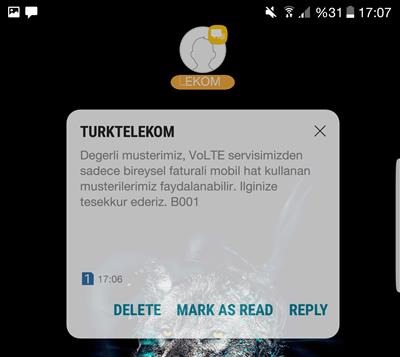
If you own a Samsung Galaxy Note 5, you can flash this hack. This will show you the incoming messages as floating window. It does not look like a typical android message and it has options like reply, mark as read and delete. You can also dismiss the message by tapping on the cross icon.

Galaxy Note 5 Floating Message Hack

To enable floating messages, download this file on your Samsung Galaxy Note 5 and install it using TWRP custom recovery. Then open “floating messages” and enable it for “messaging”.

You can also set the transparency level here. As you can see, I’ve set it to 48 and it looks absolutely stunning.

Keep in mind that since it makes use of TWRP, you will be voiding your phone’s warranty since it tinkers with internal files. You will also receive no more official updates. On the brighter side, you will be able to install just about any ROM or mods out there.

I’ve tested on Dr Ketan’s Note 5 ROM and it works like a charm.

Which is best free data recovery software?

Are you looking for best free data recovery software that lets you recover data? Meet the EaseUS Data Recovery that lets you recover deleted or corrupted data from almost any type of source. This exhaustive list includes USB flash drive, lost partition, SSD, portable hard disk and even digital camera. It has several easy-to-follow instruction that let you recover your data with ease, no matter the type of media being used.

free data recovery software

Continue reading “Which is best free data recovery software?”

Scosche USB-C Adapter with Digital AV Multiports for Macbook released

Scosche USB-C Digital AV Multiport Adapter review

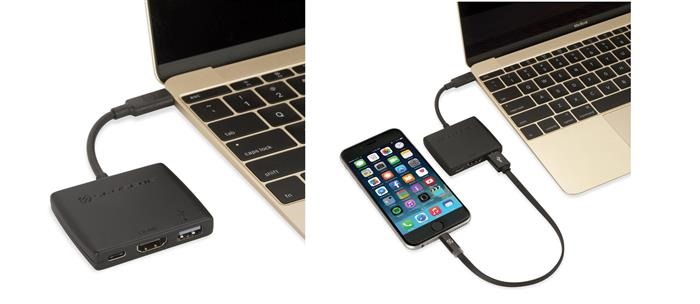
Scosche has churned out USB-C type adapter for the Macbook Pro line. It promises to give a simple solution to let you use old peripherals. It has three ports that gives you the traditional USB-A port that is compatible with most of the flash storage drives and other Mac-accessories. It has also has an HDMI port to let you connect external monitors or projectors and an additional USB-port which can be used to power source to even charge the Macbook when you are still using the other ports.

Continue reading “Scosche USB-C Adapter with Digital AV Multiports for Macbook released”