ChoeTech wireless fast charger T511-S Review for Galaxy Note 5

Normally, wireless chargers are tad slow for charging my Samsung Galaxy Note 5 but the ChoeTech wireless fast charger T511-S is going to change all that. It promises to charge your device as fast as a wired quick charge 2.0 charger but it does it wirelessly which is nice.

ChoeTech wireless fast charger T511-S Reviews

Shown below in the following picture is my LG V10 as I took my Galaxy Note 5 to take this picture. When you place your smartphone on ChoeTech wireless fast charger T511-S, the LED on the charger will glow green to show that it is charging the device. This also shows that quick charging is being done. You can buy it for mere $24 on amazon.

ChoeTech wireless fast charger T511-S Review

It might glow blue if the phone is not doing fast charging. I love the build quality and its ergonomic design. I also like how thin and light it is. It still holds its place nicely as it has sticky pads that ensure it doesn’t slide around.

ChoeTech wireless fast charger Review

* Universal Compatibility: two models for wireless charging: (1)Fast Charge Model(Output 10W Max) for your Galaxy Note 5 and S6 Edge+, (2)Standard Charge Model(Output 5W Max) for your standard QI enabled device like S6,S6 Edge

* It’s normal for the pad and phone get warm slightly during inductive charging, and they may get even warmer, if you use your phone during charging, for example using GPS or playing games, music etc. Its usage is very simple, what you need to do is just putting the charging machine with QI-marked in the charging area, then it will start to charging persistently.

* You will find it a good solution for your convenient digital life.Please read the User Manual carefully before use.Some of the smartphone need an extra receiver module such as Samsung Galaxy

The only thing not to like about it is that if you do not center your Galaxy Note 5 or any other smartphone, it will not charge it. You ought to place it horizontally.

How to do complete backup on Windows 10?

EaseUSTodo Backup tool is an excellent way to do full or partial backups of your computer. It is designed in such a way that even a novice can use it perfectly. The new version allows you to backup your data to cloud services like Google Drive, OneDrive and DropBox.

clip_image002

The software allows users to do backup the entire system and restore it to original state in case disaster strikes. EaseUS Todo Backup tool can be used for other things too, for instance, if you are planning to migrate from hard disk to a solid state drive (SSD) then this application can help you migrate windows 10 to SSD along with programs you had previously installed.

Cloning the entire operating system has been so easy. EaseUS Todo Backup tool is a free cloning software for Windows 10 allowing you to clone the entire the partition and have it saved on your physical media, another partition or even in cloud. You can various different types of backup with most popular being the System backup that gives you full system protection. Some people like to do file backup while some clone the entire disk using Disk Imaging feature that also clones Windows 10 or any other operating system you might have installed.

Talking about operating system, the EaseUS Todo Backup tool supports Windows 10/8/7/Vista/XP and multiple languages including English, German, Spanish, French, Italian, Portuguese, Polish and Chinese. Using this backup application is very easy. Just install it from the official website and start backing up easily. In fact, there is no reboot required to complete the installation.

Other nifty features include USB 3.0 support that lets you do backups and restores at a speedier rate compared to the USB 2.0 drives. If you are running out of space on those drives, you can make use of its backup compression feature to ensure that the outputted backup file is as small as possible.

Cheapest 15 inch ultrabooks of 2016: ultrabooks under 500 dollars

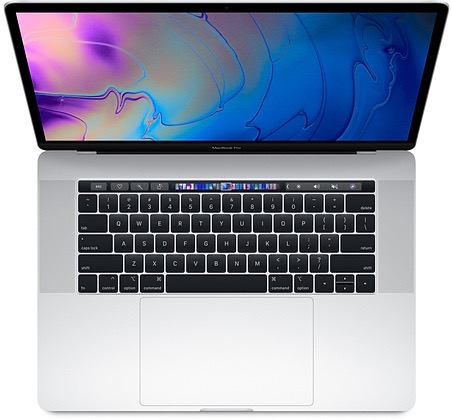
15 inch ultrabooks are best for business as well as for doing any kind of serious work. If your job requires you to sit in front of computer screen for long durations then going for a 15 inch ultrabook laptop will be an ideal choice. 2015 was clearly the year of ultrabooks thanks to the powerful and very power-sipping processors from Intel and AMD.

best ultrabook.jpg
Continue reading “Cheapest 15 inch ultrabooks of 2016: ultrabooks under 500 dollars”

Download Nexus 6P TWRP custom recovery

Every android device including Nexus 6P needs a custom recovery in order do any sort of hacking. That is why folks at xda developers have churned out a custom recovery that features touch driven user interface. It is called the TWRP and it is now available for download. Own a Nokia X? Download its TWRP custom recovery here.

Download Nexus 6P TWRP

TWRP for Nexus 6p will allow users to install custom firmwares and do all sorts of hacks on it. Installing TWRP custom recovery onto the Nexus 6P is rather easy. You can downloaded latest version from here.

To install TWRP on Nexus 6p, you will require ADB drivers which are part of platform tools. Windows users will also have to install USB drivers. You will also need to enable developer mode on your phone. Also enable USB debugging here. Type in these commands on your computer.

adb reboot bootloader
fastboot flash recovery twrp.img
fastboot reboot

Here replace the “twrp.img” with the file you downloaded.

Download Cyanogen Mod 13 for Moto E first generation

You can download Cyanogen Mod 13 for the Moto E first generation which beings Android Marshmallow to the smartphone

Thanks to folks at xda developers, Moto E users are able to finally enjoy what it feels like to have Android Marshmallow on their smartphones. Interestingly, Cyanogen Mod 13 for Moto E first generation is quite stable for daily use. Even the dual SIM functionality works like a charm. Of course, display, wireless LAN, SD card, GPS, Bluetooth and Camera works as well. Download CM12 for Moto E 2015 from here.

Download Cyanogen Mod 13 for Moto E first generation

Installation instructions for Cyanogen Mod 13 for Moto E first generation

* Wipe data and cache. Make sure Moto E bootloader is unlocked.
* Flash the CM13zip. Downloadable from here. Of course you need to have Moto E custom recovery to flash it.
* Reboot
* boot into recovery mode.
* Install gapps if you want
* Reboot

That is it, you now have Android 6 marshmallow on your smartphone. Moto E is showing its age but till we have xda developers, we do not have anything to worry about.

Download Xperia Launcher for Nokia X2

Until now we have been able to install various launchers, for instance Note 4 launcher on Galaxy S4 and so on. Today we will show you how to install Xperia launcher on Nokia X2. This has been done thanks to an XDA user who has been able to do it on his Nokia X2.

Download Xperia Launcher for Nokia X2

To install, you will have push the launcher as system app. Download the Xperia launcher for Nokia X2 from here and install it like a regular APK file. After installation, the next time you press the home button, choose the Xperia launcher and set it as default so that you do not get the notification about choosing default launcher again and again.

A lot of people do not like the native Nokia X2 launcher and installing Xperia launcher is a good choice since it is used on all Sony Android phones including the low end and high end devices.

Download Cyanogenmod 12 Android 5.1.1 for Nokia X2

Cyanogenmod 12 is now available for download for the Nokia X2 android devices. This means users of Nokia X2 will be able to enjoy Android 5.1.1 a k a lollipop on their phones. The progress is still in its infancy stage and not a lot of things are working at the moment. For instance, mobile data, messaging and camera are not yet working on Android 5.1.1 CM12 right now so consider installing it only if Nokia X2 is not your primary device.

Download Cyanogenmod 12 Android 5.1.1 for Nokia X2

Installation instructions for downloading and installing Cyanogenmod 12 Android 5.1.1 for Nokia X2

* Download ROM from here.
* Wipe Factory reset
* Wipe cache
* Wipe dalvik cache
* And flash ROM and GApps

Find the development of this at xda-developers. Again, the status of the android 5.1.1 lollipop firmware for the Nokia X2 is in Alpha phase so there are several rough edges.