The ASUS S101 is the ASUS’s flagship netbook model. Infact, it is an endeavor to create a completely different dimension in the field of netbooks. It looks very expensive, but costs just a little more than the normal netbooks in town. Under the hood, you get a powerful Intel Atom powered machine weighing at mere 1.1kg. Does it lives to its hype? Read the review to find out.

Design
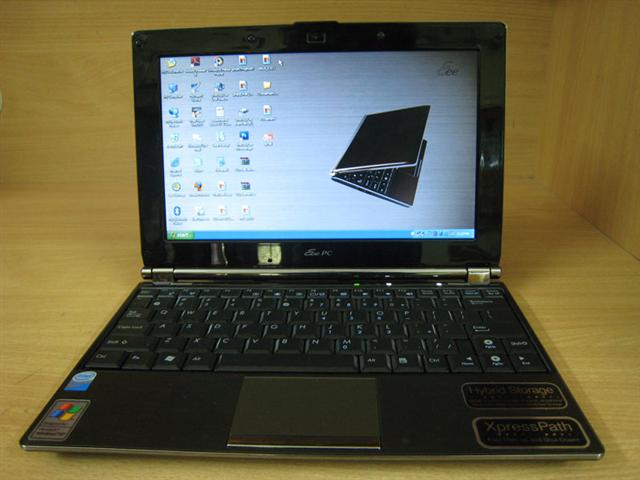
If you were one of the early adopters of the EEE 701, then you would absolutely love the design and lines of the S101. The reason is that the EEE 701 was a very small and nicely designed netbook. It is just 200gm heavier than the 700-series and it adds so much to the whole package.
Let us put the S101’s design like this: it is the best looking netbook in its class.
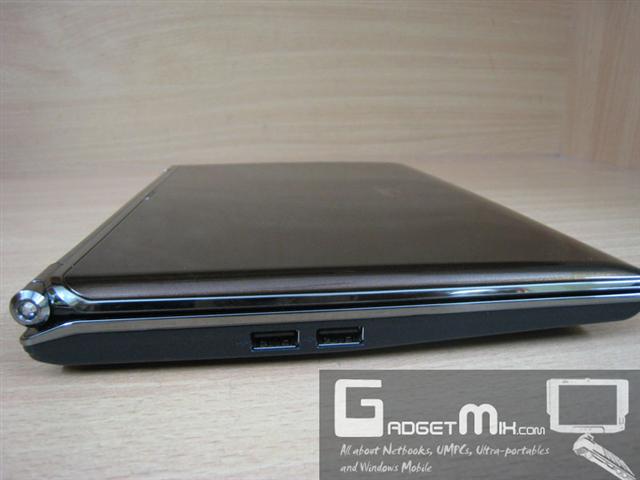
Both the sides are uncluttered. On the left side of the device, you will find the familiar 2 USB 2.0 ports.

On the right side of the device, you will find a USB 2.0 port, earphone and mic jack.

On the back side, you will find the VGA port, AC adapter and multi-card reader. Air vent is also present at the back.

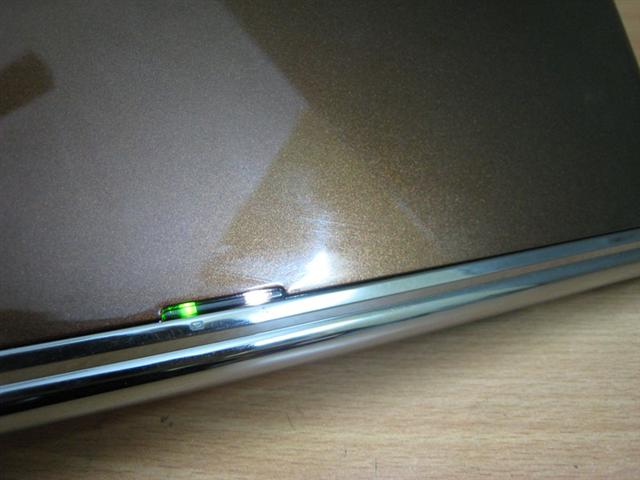
The cover holds two LEDs which show the charging status and power status. The power LED lights up when the EEE is on and blinks when the netbook is in standby mode. The charging LED is orange on AC power and green on battery power. The cover needs a special mention. It is glossy and looks very stylish and certainly makes it look different from the rest of the netbooks.

The area around the touchpad which has a metallic feel to it, but it actually made of high quality plastic. It feels very solid and is well made.

The design of the EEE S101 is not curvy like the EEE 1000H, which actually makes it look more expensive than its competition.
Display
Like other modern netbooks, it has 10.2-inch screen with 1024 x 600 pixel resolution display. The colors are vivid and images appear sharp. The contrast levels are good and the display is adequately bright.

Higher resolution would have given the S101 an obvious edge over its competition, but 1024 x 600 resolution still looks nice on the screen.
Keyboard
People buy netbooks for two primary reasons – to surf on the go and to type on the go.
For the second reason, a netbook must have a nice keyboard. The S101’s keyboard has a good tactile feedback. You do not have to apply a lot of pressure to type something. My typing speed is 90WPM on my big laptop and surprisingly, I got 110WPM on S101. The reason behind this is that the keys are easier to press and thus I do not have to apply a lot of force to press the keys.

Touchpad
The Touchpad is responsive and gives a nice feel to the user while using it. Below it, you will find a single bar, which is responsible for both left and right clicks. The buttons do not take a lot of effort to be pressed, which is nice thing. This is unlike EEE 1000H, whose buttons were hard to press.

Speakers
The speakers are located on the bottom of the unit, which are adequate for a netbook. Although they lack the depth possessed by the EEE 1000H and loudness of the EEE 700-series.
Memory
The EEE S101 comes with 1GB RAM and 16GB SSD. Here, we are talking about the XP unit. 1GB RAM is enough if you are running XP. However, to speed up the performance, you are suggested to increase the RAM to 2GB and move temp data to the RAMdisk. Also, it was nice to ASUS bundling a 16GB SD card in the box. While I would prefer bigger SSD over SD, but its inclusion is, nevertheless, appreciated.
See this article to know how to set up RAMdisk on (any) netbook.
Battery Life
Although the S101 is built for the fashion conscious people but that does not mean that ASUS will let the battery life sacrifice. The battery is 4900mAh lithium polymer battery. With WiFi on, I was able to squeeze 2 hours and 40 mins of battery life. You can go upto 4-4.5 hours with the wifi off though.
Benchmarks
I performed some basic benchmark tests few days back. I’ve pasted the content of that post here.
Here is the screenshot of CrystalDiskMark benchmark test:

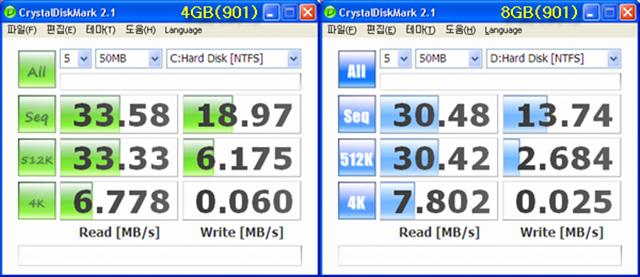
Let me do some comparisons with some other netbooks that use SSD:
1) ASUS EEE 901: Clearly, the S101’s SSD is faster than the 901’s SSD

2) ASUS EEE 900: The SSD used in 900 was highly criticized for the extremely slow SSD write speed. Here are its figures:
DISK C: (4GB internal SSD):
Sequential Read: 36.61, Sequential Write: 15.20
512K Random Read: 39.25, 512K Random Write: 5.059
4K Random Read: 7.233, 4K Random Write: 0.062
DISK D: (16GB internal SSD):
Sequential Read: 30.21, Sequential Write: 13.00
512K Random Read: 30.95, 512K Random Write: 2.498
4K Random Read: 8.715, 4K Random Write: 0.025
Let’s talk about practical usage because sometimes the benchmarks can be deceiving. The S101 feels adequately fast for day-to-day activities. It boots up quickly; shuts down quickly and performs well with normal tasks like browsing and office editing. These will be discussed in more detail in the full review which will be published within a week.
ASUS claims that the EEE PC S101 has 62GB storage memory. Well, out of that, you get only 16GB SSD space. This may make you wonder where the rest of storage space that the ASUS claims it to it be there? Well, here is how the storage memory is divided:
- 16GB SSD
- 16 SD card
- 30GB EEE Storage link
Out of 16GB, you get 14.9 usable SSD space onto which the OS is installed (in this case, Windows XP). And yes, the 16GB SSD card is included in the box.
Here is the screenshot of crystalmark:

Upgradability
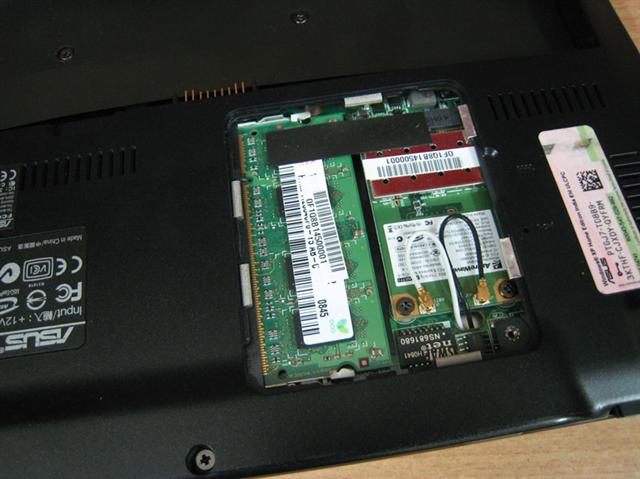
There is not much to upgrade in the S101. The 16GB SSD is not user-accessible. However, the RAM can be swapped. Read this article to know how to swap the RAM
Final Thoughts
The S101 is sleek, stylish and promises to satisfy the inner-urge to posses a luxury netbook/laptop. It is so far the perfect combination of beauty and function in a single unit. It weighs so less and packs all the features that you will find in a modern netbook
Pros:
- Sleek and attractive design
- Nice performance
- XP runs very nicely
- Dual microphones
- Responsive keyboard
- Light weight
- 30GB EEE storage
- 16GB SD card bundled
- Looks more expensive than it actually is
Cons:
- Awkward right key placement
- Speakers lack bass
- Only 10GB free on XP version











 World of Warcraft

 Although you are not going to see the first Windows Mobile 6.5 devices from HP any soon, but HP has made it clear that it has always supported Windows Mobile and will continue to support it in the future too.