Download Windows 10 USB Tool for netbooks, PCs and Laptops

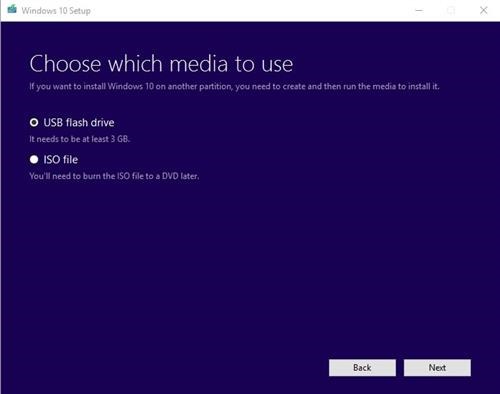
If you own a netbook, PC or laptop without DVD drive, you will have to install windows 10 using USB flash drive. You can install Windows 10 without using the DVD. We tell you how to perform these operations with Windows 10 USB Tool. You can download the Download Windows 10 USB Tool for netbooks, PCs and laptops from the bottom of this article.

Download Windows 10 USB Tool

Continue reading “Download Windows 10 USB Tool for netbooks, PCs and Laptops”

Lenovo IdeaPad 100s Review: Best netbook of 2016 – Lenovo 100s YouTube review

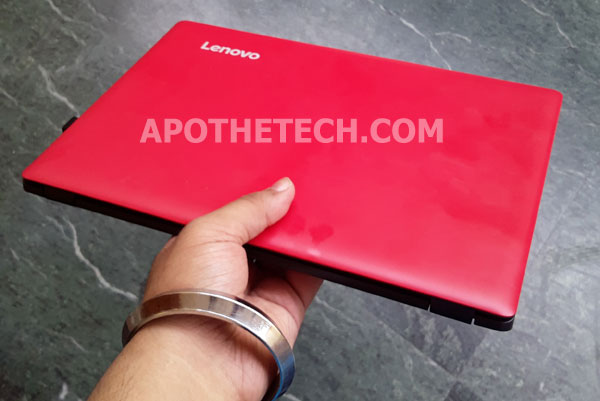
In our Lenovo IdeaPad 100S review, you will learn why Lenovo has struck gold with its new netbook. This Lenovo laptop is now available for under 200 dollars in US and Asian countries. This Lenovo 100s review will also be accompanied by a video review that will give you a better idea of its looks and features.

lenovo ideapad 100s review

Continue reading “Lenovo IdeaPad 100s Review: Best netbook of 2016 – Lenovo 100s YouTube review”

Asus 1000H / 1000HE Eee PC Bios Recovery guide

The Asus Eee PC 1000H was one of the most popular netbooks. Mine has been working fine until yesterday when it did not boot. I freaked out a little. A quick search online revealed that its BIOS was corrupted. I have made an Asus 1000H Eee PC Bios Recovery guide where I have explained how to flash and do the recovery of Bios.

1000h bios recovery

1. Go to Asus support site and search for 1000h in the product box.
2. Download the BIOS for Asus 1000H. You will get a zip file. Download it and unzip it.
3. You will find a ROM file. Rename it to 1000H.ROM or 1000HE.ROM if you are using that netbook.
4. Get a USB drive or an SD card with 1GB or less storage. If you are going to use an SD card, get a card reader.  
5. Format it with FAT file system. FAT32 or NTFS would not work.
6. Put the file into the root folder. Do not put it into any folder.
7. Take battery out and plug in the USB / SD card with card reader. Press the Alt + F2 key repeatedly and press power button. 
8. The system will beep once to tell you that it can found the BIOS. Follow the instructions on the screen.
9. It takes around 3-4 minutes for the flash to complete. 
10. Here is a video that shows the entire process.

Acer Aspire D250 BIOS Recovery, recover it from brick

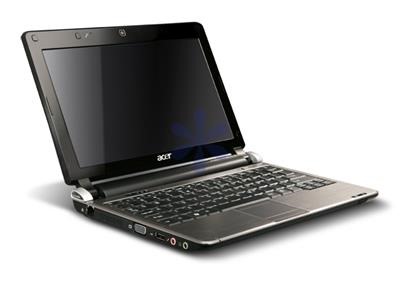
Something went wrong with your Aspire D250 BIOS? Download the latest BIOS from support.acer.com and follow these instructions to recover Acer Aspire D250 from brick state.

1. First format an USB stick with FAT, if this option is not available use a smaller USB stick (eg 1Gig)

2. Download the latest BIOS, and put both FLASHIT.EXE and the BIOS file in the root directory of the stick. Do NOT rename the BIOS file, it should be KAV60.fd

3. Now connect the USB stick to the AA1. Turn the AA1 off, DISCONNECT the battery but leaving the AC adapter connected. Press Fn+Esc, keep it pressed and press the power button to turn the AA1 on.

4. Release Fn+Esc after a few seconds. Press power button if it begins to blink, otherwise do nothing. The AA1 will now initiate the BIOS flash, do not interrupt it under any circumstances. The AA1 will reboot shortly after. Wait patiently.
Acer Aspire D250 BIOS

The BIOS has been flashed and all settings reset to default.