How To: Install Windows XP on the HTC SHIFT [UMPC]

Sick with the pathetic performance of A110 processor, while running Windows Vista? A week back, we posted about how to install Windows 7 on the HTC Shift. Sadly, the Windows 7 is still in it’s beta stage. And while it is not out, XP remains the OS of choice for Netbooks as it runs on low-spec hardware incredibly well.

Sadly, the original Resolution changer won’t work. You must use this version in Windows XP. Also, to access the Windows Mobile side, you will have to install ActiveSync. Tablet input panel is not working at the moment.

Install Windows XP on the HTC SHIFT

Here are the full instructions on how to get Windows XP on your HTC Shift:

1.- Download and save to a USB disk drive:
http://www.filefactory.com/file/fa3e…s_shift_XP_rar
and https://phatpipez.homeftp.org/HTCShi…chXPproSP2.exe

Be sure to extract the rar file before starting or have a unrar program installer available, you cannot extract rar files on a newly installed windows XP!

2.- Install XP. Use your own version in your own language!
Choose same disk and fast NTFS format. Use the administrator account for now.
Let it finish ignoring any message about the screen format, etc

3.- Eject CD-Drive
Insert USB pen drive

4.- Run HTC Shift XP Drivers/Chipset/infinst_autol.exe next, next, next… reboot when finished.
5.- run HTC Shift XP Drivers/VGA/win2k_xp14324.exe next, next, yes, next, next, reboot when finished.
6.- run TabletPC_PatchXPproSP2.exe, it will extract files to C:temp,
Go to C:temp and run step1.reg,
Run Step2.bat
Leave it alone until de hard disk stops and reboot

7.- Run HTC Shift XP DriversVistaECDrvV1[1].0.1.10setup.exe from the folder

8.- Run HTC Shift XP DriversTouchScreen(1[1].1.0.2)ATSV1102(WHQLed).exe next,next, next and reboot when finished.

9.- run HTC Shift XP DriversSynaptics MicroPad(10[1].0.11.1)setup.exe , reboot when finished.

10.- run HTC Shift XP DriversAudioWDM_R195setup.exe , reboot when finished.

11.- run HTC Shift XP Driversfingerprintsetup.exe .

12.- run HTC Shift XP Driversomnipass 5.0setup.exe. Reboot when finished.

13.- run HTC Shift XP DriversUSB LANsetup.exe .

14.- run cygwinsetup.exe, and select install from folder. select ioperm from the devel subfolder.
Unselect icons on desktop and start menu and finish.
Run cygwin.bat from c:cygwin

type “ioperm –i” + enter and “exit” + enter

move hsect-2.1hsect2.exe and move it to c:cygwinbin

15.- move the bat files from archivos bat to the desktop.

16.- Run BT on.bat from your desktop and let windows install its own drivers

17.- run WF on.bat from your desktop and cancel the windows installation.

18.- copy HTC Shift XP DriversWLANsdbus.sys to c:windowssystem32drivers say yes to the replace dialog and reboot.

19.- Install the WLAN drivers , from the hardware manager, right button over marvell SDIO… update driver, and select the HTC Shift XP DriversWLAN folder.

ClarionMiND MID from Clarion coming soon [MID]

Clarion joins the MID and also a portable navigation system powered by Intel Atom processor. Hardware-wise, it is pretty weak. It comes with quite low capacity 4GB SSD with mere 512MB RAM. And don’t get your hopes up by the Intel Atom processor as the clock speed is quite pathetic, 800MHz. On the funny side, the Clarion calls the WVGA 800×480 resolution screen high-resolution.

It comes with Google Maps and offers full Internet Browsing thanks to (custom version of) Firefox.

It also offers traffic updates provided by Traffic.com. Although it has just 4GB SSD, but it comes with micro-SD slot, which lets you to expand the memory easily. Clairon’s new MID is intelligent enough to switch from mobile mode to car mode when placed into Car’s cradle.

Features and Specs:

  • 4.8” WVGA (800×480) LCD display with Touch-Screen
  • Intel® Atom™ Processor
  • 800MHz Clock Speed
  • 512MB DRAM
  • 4GB SSD Flash Memory
  • Built-in Wi-Fi® IEEE 802.11 b/g
  • Built-in Bluetooth® 2.0 + EDR Dial-up Networking (tethering)
  • Built-in GPS Antenna/ Receiver
  • Built-in Amplifier and Speaker
  • Rechargeable Battery
  • 2 USB Ports (Standard/ Mini)
  • Headphone Jack
  • microSD Card Slot
  • One Touch Keys
  • Docking Station Connector

Price is not so friendly. You will have to shell out $699 to get yourself one of these MIDs. Personally, I find it quite over-priced considering the fact that it comes with a low powered processor and pathetic amount of RAM.

[ClarionMiND link]

How To: Install Windows 7 on HTC Shift [UMPC]

HTC Shift comes with Windows Vista only. There is no official support for Windows XP. But, Vista drivers seems to work fine on the Windows 7 (of course in compatibility mode). The snapvue also seems to work fine in Windows 7. To install Windows 7 on the HTC Shift, you will need an external DVD drive.

Here is a step-by-step guide to install Windows 7 on Shift. (thanks to deadnex at xda-devs)

• Download the beta image from Microsoft

• Burn the image to a DVD

• Enable wifi and Bluetooth in Vista.

• If you want to dualboot Windows 7 and Vista you need to partition your harddrive before starting the installation. Use a suitable partition manager such as Paragon Partition Manager and shrink c:/ to approximately 15-17 GB. Create a new partition in the free space.

• Connect the USB DVD drive to your shift

• Press fn+0 (F10) after turning on your shift – select the DVD drive

• Follow the steps for installing Windows. Remember to select partition 2 as target partition if you want to dualboot with Vista. If not you can safely format the existing partition. This will not affect the recovery partition. If you prefer to upgrade from Vista to keep your files and programs you can start the installation from Vista instead of booting the DVD. However, since Windows 7 is still a beta OS this might cause some unknown problems. I recommend installing a fresh copy and dualboot with Vista.

• Download the shift drivers from HTC Continue reading “How To: Install Windows 7 on HTC Shift [UMPC]”

Acer working on a Mobile Internet Device [MID]

Soon after releasing the 10-inch Acer Aspire One, Acer may be now working hard on a MID with a pretty sizable touchscreen. The unit also seems to have a dock connector at the bottom to connect to other peripherals. The little hole looks like to be a 3.5mm headphone jack.

Acer working on a Mobile Internet Device

There is no other information like the type of processor it will be using and the amount of storage space. But, if we follow the market trend, all the latest MIDs are coming with Atom processors, which also opens the possibility to use Desktop-class operating systems like Windows XP or Windows 7. So, it will likely have an Atom processor. [electronicpulp]

BenQ S6 MID unboxed [MID]

Midmoves have posted some great pictures of the BenQ S6 MID. For those who don’t know about this little MID from BenQ, it is a Mobile Internet Device (MID) with built-in 3G, 2GB SSD, 512MB RAM and a 4.8-inch WVGA display (800 x 480).

BenQ S6 MID unboxed

We have heard great things about it including it’s great browsing capabilities along with breezy HSDPA’s 7.2 MBPS speeds, it surely can be the best MID of all times. Again, my major complain is the poor screen resolution. You can get the resolution in a much smaller Windows Mobile devices these days like HTC TOUCH HD (review) and Sony Ericsson Xperia X1(review)

Keep an eye on midmoves for the full review of the BenQ S6 MID.

Viliv X70 – another Atom Powered MID [MID]

Atom powered MIDs seem to be on the rage now! Viliv has unveiled another MID based on Atom platform. It appears that most of the companies are now jumping from Arm-based architecture to Atom-based architecture.

It comes with Intel Atom Silverthorne (Z520) processor clocked at 1.33GHz and a 7-inch WSVGA display (1024 x 600). Although, it sounds a little odd, when engadget is calling this MID a handheld.

Here are it’s specifications:

  • Atom Silverthorne 1.33GHz processor
  • choice of SSD: 8GB/16GB or HDD: 30GB/60GB
  • Windows XP or Linux
  • 1GB RAM
  • optional WiMax module (mobile broadband)
  • Bluetooth 2.0+EDR and WiFi b/g (no ‘n’)
  • Weight: 660g
  • built-in GPS (Sirf Star 3)
  • SDHC slot
  • dimension: 210(w) x 117(h) x 22.5(d) mm

It is nice to see that Viliv is giving Windows XP as an option unlike the Gigabyte M528, which has been giving a headache to it’s users in getting the XP working. Also, folks at Viliv claim that X70 would give upto 6 hours of battery life. That would be quite difficult to achive considering the fact that it is running on Atom processor and not on a ARM based platform, which is much more power-frugal. The inclusion of SDHC slot and Sirf Star GPS are nice additions.

[myviliv]

Installing Windows 7 on Fujitsu U810 or U1010 [UMPC]

Fujitsu U810 has been around for almost 1.5 years. Windows Vista on it’s 800MHz processor was not amazingly fast. This forced many people to switch to Windows XP or XP Tablet. Andre from katastrophos has posted the steps to install the Windows 7.

First of all, you need to download the Windows 7 BETA from Microsoft. Then, burn the ISO to a DVD and use an external DVD drive to install it via USB.

The Setup.exe on the driver CD will complain that the operating system is unsupported. To circumvent this problem, just start the setup in Vista compatibility mode:
Right-click on “Setup.exe”, “Properties” -> “Compatibility” -> “Run this program in compatibility mode for:” “Windows Vista”.

Install the drivers and utilities in following sequence:

Drivers
04. Button Driver
05. Camera Driver
07. Fingerprint sensor (driver)
08. FUJ02B1 Device Driver
09. FUJ02E3 Device Driver
11. Pen Driver
12. Pointer device driver

Utilities
03. Button Utilities
07. Fujitsu System Extension Utilities

The Auto-Rotation is not working at the moment. You have to do that manually. After installing Windows 7, you will get a Experience Index of 1.5. That is due to the processor. Score of rest of the components are ok for UMPC.

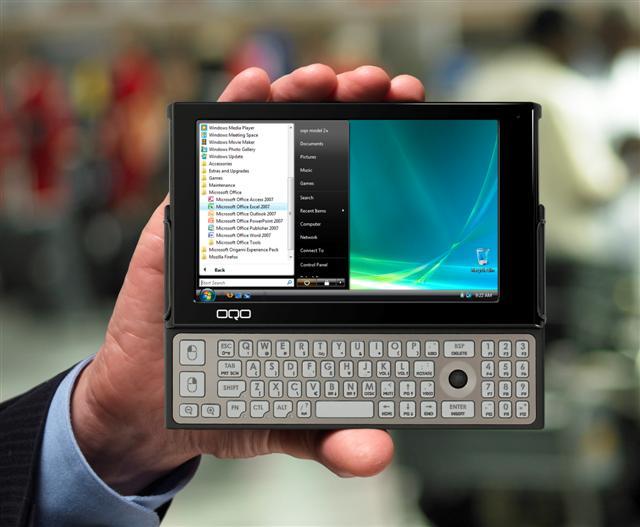
OQO Model 2+ benchmarked [UMPC]

The OQO Model 2+ was revealed at the CES 2009. The best thing about the OQO Model 2+ is the use of the fastest Atom processor so far, the Atom Z540 CPU running at 1.86GHz. OQO also beefed up the RAM to 2GB, which made everything even more smoother than before.

OQO Model 2+ benchmarked

Jenn, over midmoves have done some benchmark tests on the new OQO 2+. Here is the screenshot of Windows Experience Index. It is quite odd on the Windows Vista’s way of judging  the base score by taking into account the lowest score rather than taking the average score into consideration. Nevertheless, we can easily make out that Vista seems to be quite usable on the little machine from OQO.

Here are the scores from the CrystalMark, which are not shabby at all comparing to the other UMPCs and Netbooks in the market.

Benchmarks aside, the main aspect of the OQO Model 2+ that stops me from getting one is the low resolution WVGA display, which can natively show only 800 x 480. Folks at OQO should have put in a minimum of 1024 x 600 pixel display which is more common on the netbooks and UMPCs these days. A WVGA display can ruin the whole user experience if you are running a lot of applications concurrently or you are running a lot of tabs in firefox/IE/Chrome.

AIGO MID with Windows 7 will be launched later this year

Aigo has announced that by the end of this year, they will be coming up a MID that will be powered by Windows 7. Yes, you read that right. A Windows 7 powered MID is in the works at Aigo.

Will they use their current MID, shown in the picture above to run the Windows 7? Only time will tell. Windows 7 is way MID and Netbook-friendly OS than the fat and bulky Vista. The Windows 7 feels as-snappy-as the Windows XP and looks as great as the Windows Vista. It would be great to see the Aigo MID running Windows 7